Step-by-step guides for every role, with annotated screenshots and troubleshooting, plus the full operational manual. Pick your role below, or search for a button, a status or an error message.
Read this once before your role guide. It covers setting up your account, signing in safely, finding your way around the office app, and what to do when you cannot get in.
Office appAll roles
Your invitation
Accounts are created by an administrator — you never register yourself. You receive an email with a link and an SMS with a 6-digit code. The invitation lasts 7 days.
Open the link and press Accept invitation. (No link? Open the invitation page, enter your email or phone and the SMS code, and press Continue.)
Verify your phone number — press Send code, type the code you receive (valid 10 minutes) and press Verify and continue.
Choose your password — at least 12 characters. A few unrelated words (for example mango lantern river seven) are strong and easy to remember. Passwords found in public data breaches, or containing your name or "kaduna", are refused.
Two-factor authentication — set up an authenticator app (see below). It is compulsory for verification officers, approvers and administrators; others may choose Enrol later.
Usage policy — read it, tick both boxes and press Accept and continue.
Photo and signature — draw your signature in the box (it is printed on documents you approve or witness); the photo is optional. Press Finish setup, then Go to dashboard.
Signing in
The office app is at kadgis.plotbase.org. Bookmark it — always check the address bar shows exactly this before typing your password.
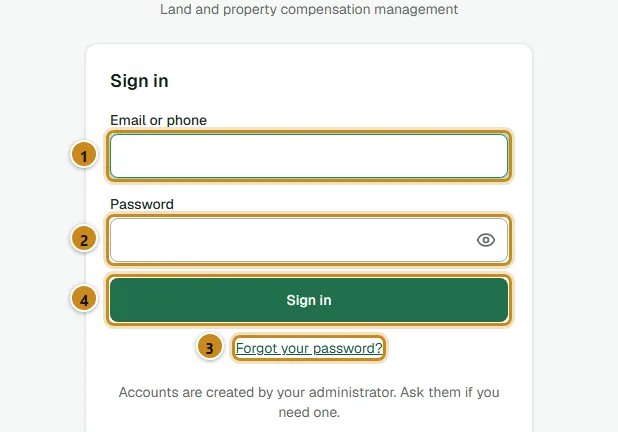
Sign in
Email or phone — whichever your administrator registered.
If two-factor sign-in is on, the next screen asks for the 6-digit code from your authenticator app. If your phone is not with you, type one of your recovery codes instead (they look like xxxxx-xxxxx and each works once).
Good to know
You are signed out after 8 hours without activity, or 12 hours after signing in. You simply sign in again and return to the same page.
You can be signed in on up to 3 browsers at once; signing in on a fourth signs out the oldest.
After a password reset by your administrator you get a temporary password that works once, within 24 hours, and then asks you to choose a new one.
Two-factor sign-in
A second step at sign-in: a 6-digit code from an app on your phone (Google Authenticator, Microsoft Authenticator, Aegis or similar). Set it up during onboarding or later under your name → Security.
Press Set up authenticator app. A QR code appears.
In your authenticator app, add an account and scan the QR code (or type the key shown under it).
Type the 6-digit code the app shows into Enter the 6-digit code from the app and press Verify and activate.
Save your recovery codes somewhere safe and private — on paper in a locked drawer is fine. They are shown only once.
If your role requires it
Verification officers, approvers, senior approvers and administrators cannot use the system until two-factor sign-in is on. Every page takes you to Security with the message Two-factor sign-in is required for your role until you finish.
"Confirm it's you"
Before sensitive actions — approving, publishing a rate card, approving a phone, resetting someone's password — the system asks for your password and authenticator code again. After you press Continue you return to the page you were on: press the action button again. You will not be asked again for five minutes.
Finding your way around
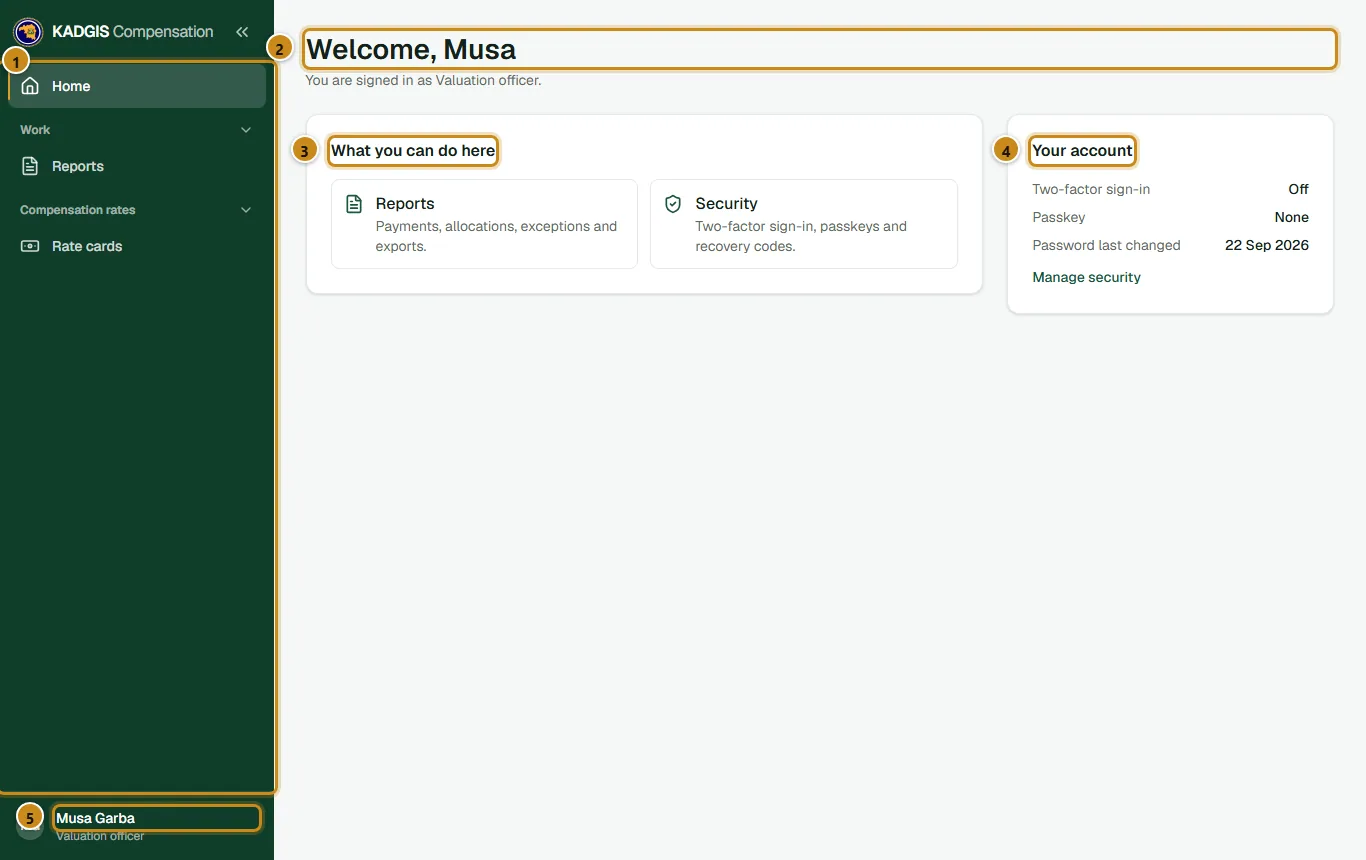
Home and the side menu
The side menu. You only see the items your role allows.
"Welcome" and the role you are signed in as.
What you can do here — shortcuts for your role.
Your account: Two-factor sign-in status and Manage security.
Your name. Opens My profile, Security, Signed-in sessions, My field devices and Sign out.
Menu group
Contains
Home
Your starting page.
Work
Projects, Reports.
Compensation rates
Rate cards.
Reference lists
Wards and LGAs, Communities, Property and crop types.
Administration
Users, Roles, Field devices, Field sync monitor, Offline map packs, Notifications, Audit trail.
Inside a project you see a row of tabs: Overview, Dashboard, Claimants, Parcels, Claims, Payments, Layouts and plots, Disputes, Ledger. Every tab is shown to everyone, but a tab your role cannot use opens a page saying You don't have permission to view this — that is normal, not a fault.
The breadcrumb at the top (e.g. Projects › Kaduna Southern Ring Road › Claims › KD-KSR-000013) shows where you are; click any part to go back. The arrows at the top of the menu collapse it to icons; on a phone use the Menu button.
Lists, filters and badges
Search in the box at the top of a list, then press Apply.
Filter with the drop-downs. Active filters appear as chips — click a chip's × to remove it, or Clear all.
Sort by clicking a column heading with arrows. Pages show 25 rows; change Rows per page at the bottom.
Open a row by clicking anywhere on it.
The browser address remembers your filters, so you can bookmark a filtered list or send the link to a colleague.
Coloured badges show status at a glance. Hover over one for a one-line explanation.
Colour
Means
Examples
Green
Done or good
Verified, Approved, Paid
Blue
In progress
Survey in progress, Being checked
Amber
Needs attention
Sent back for correction, Needs a manual check
Red
A problem or a stop
In dispute, Rejected, Not found
Grey
Not started or closed
Draft, Withdrawn
Forms mark required fields with *. If something is wrong, the field is outlined in red and the cursor jumps to it. Saved changes show a short green message; errors stay in red until you close them.
For field staff: link a phone to your account with Add a device → Generate a code.
Forgotten password
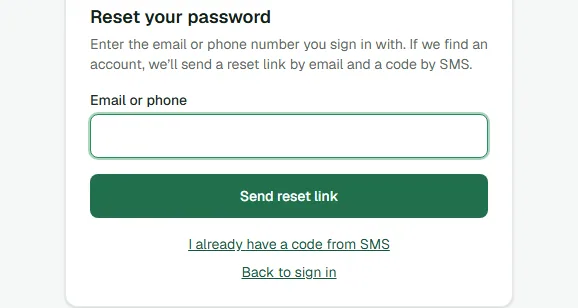
Reset your password — enter the email or phone you sign in with and press Send reset link.
On the sign-in page choose Forgot your password? — or go straight to Reset your password.
Enter your email or phone and press Send reset link. The message is the same whether or not an account was found — this is deliberate.
Open the emailed link within 30 minutes (or choose I already have a code from SMS) and choose a new password.
Field staff
Resetting your password signs you out everywhere and disconnects your field phones. Send all phone work to the office first; afterwards link the phone again with a new code.
Troubleshooting
Message or problem
Why
What to do
Invalid credentials.
Deliberately vague: wrong password, unknown email/phone, a locked or suspended account, or an expired temporary password all show this.
Check caps lock and try once more. Then check your email for a lock-out notice, wait 15 minutes, or use Forgot your password?.
Account locked (email notice)
5 wrong attempts in 15 minutes locks you for 15 minutes; 10 in total locks you until an administrator unlocks you.
Wait 15 minutes, reset your password (this clears the lock), or ask your administrator to Unlock account.
That code is not valid.
Wrong or expired authenticator code, often because the phone's clock is wrong.
Set the phone's time to automatic and use the newest code, or a recovery code.
Lost the phone with the authenticator app
You cannot produce codes.
Use a recovery code, then make new ones under Security. With no recovery codes left, ask a System Administrator to reset your two-factor sign-in.
This invitation link has expired
Older than 7 days, or already used.
Ask your administrator to Send invitation again.
Too many wrong attempts. Request a new code.
3 wrong SMS codes.
Press Send code again.
This password is too easy to guess / appears in a known data breach / You cannot reuse one of your last five passwords
Password rules.
Choose a longer phrase of unrelated words you have not used before.
Your role cannot open that page. The attempt is recorded.
Press Go to Home. If your work needs the page, ask your administrator for the right role.
This page doesn't exist / … doesn't exist or you don't have access to it
An old or mistyped link, or a record outside your area.
Go back and open it from a list.
We couldn't load this page
A temporary fault.
Press Try again. If it repeats, send the Reference code shown to your administrator.
Please re-authenticate to continue.
More than 5 minutes since you confirmed it's you.
Confirm again, then repeat the action.
Signed out unexpectedly
8 hours idle, 12 hours since sign-in, or signed in on a fourth browser.
Sign in again — you return to the same page.
When you ask for help
Say what you were doing, the exact message, the time, and any record reference (claim, parcel, claimant) or Reference code. Never send your password or authenticator codes to anyone — administrators never need them.
Role guide
Enumerator
You record the people affected by the project and the land they hold, first on paper or the phone, then in the office app. Everything that happens to a claim later depends on what you capture here, so accuracy matters more than speed.
Office app and field appTwo-factor sign-in: optionalWorks in your assigned LGA or ward
Your role at a glance
You can
Add claimants and finish their onboarding (6 steps)
Correct a claimant's details and add a bank account later
Add parcels (pieces of affected land)
Submit onboarding for a parcel's claims so survey can start
Capture people on an approved phone, with no internet
You cannot
Record who owns a parcel (the surveyor does this)
Create claims (the claims registration officer does this)
Re-run a failed identity check or see full ID numbers
See valuations, payments or disputes
Work outside the LGA or ward you are assigned to
Where you fit
Your work is the first step of every claim: Draft → Onboarded. After you submit onboarding, the surveyor measures the land and the claim continues to valuation, verification and payment.
Signing in and Home
Sign in at kadgis.plotbase.org with your email or phone and password. If you have not used the system before, follow the Getting started guide first — it covers your invitation, choosing a password and the optional authenticator app.
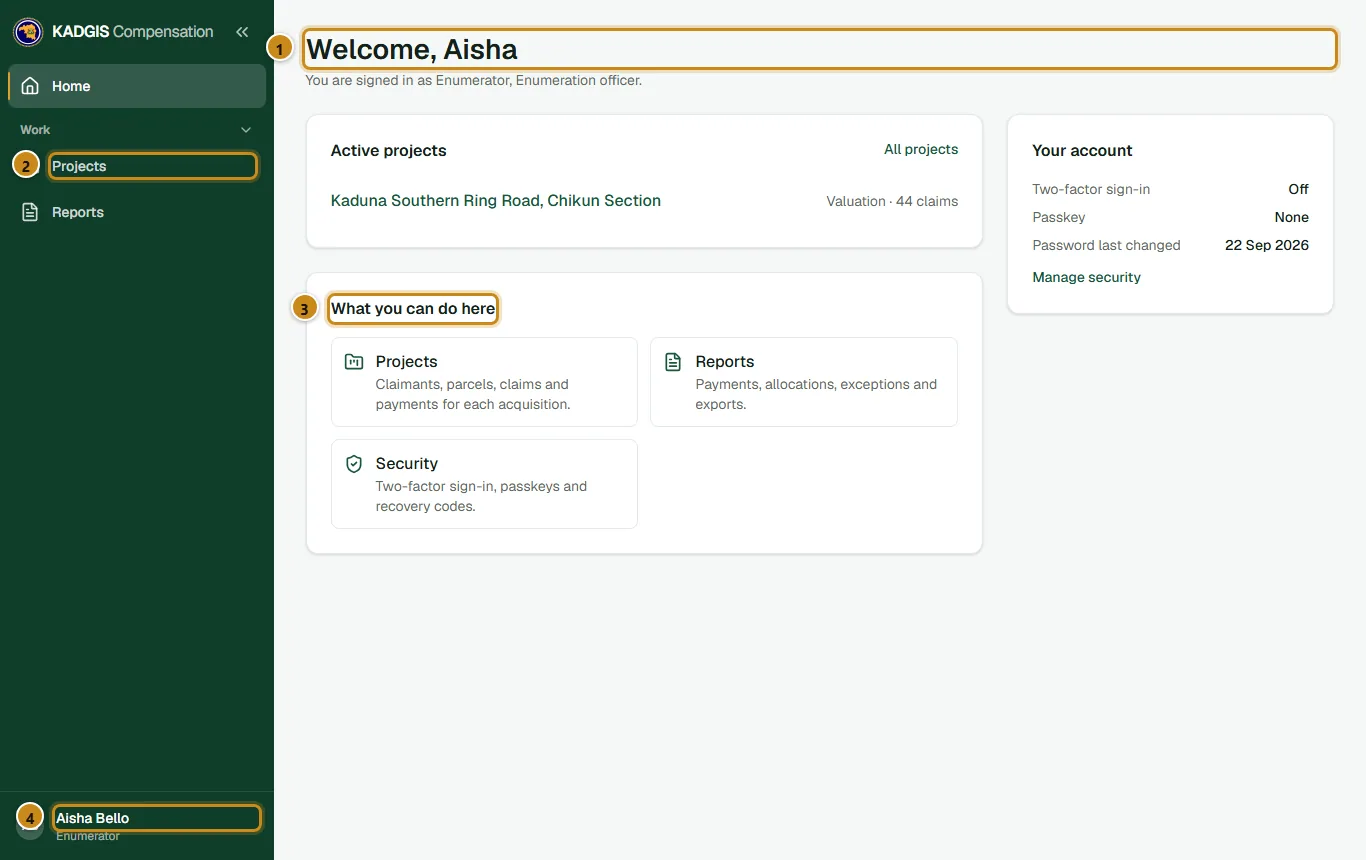
Home — what you see after signing in.
Your welcome line confirms the role you are signed in with.
Projects — open your project from here. Reports sits under it.
What you can do here — shortcuts to the areas your role can open.
Your name. Click it for My profile, Security, My field devices and Sign out.
Find the claimants list
Click Projects in the side menu and open your project.
Click the Claimants tab. You only see claimants in your own LGA or ward.
Screenshot to be addedClaimants list with search and filters
Claimants list
Project tabs. As an enumerator you use Claimants and Parcels; other tabs show "You don't have permission to view this".
Add a claimant starts the 6-step onboarding.
Search by name, phone or organisation, then press Apply.
Show filter — pick Onboarding not finished to find your unfinished work, or Identity needs a check.
The Onboarding column shows Complete or Step X of 6.
Add a claimant (6 steps)
Each step is saved as soon as you press Save and continue, so you can stop and come back later — the claimant shows Step X of 6 until finished. Fields marked * are required.
Step 1 · Who they are
On the claimants list, click Add a claimant.
Choose the Type of claimant: Individual, Family, Company or Community. For a company or community, also enter its name (and the RC number for a company), then the representative's name.
Enter Surname, First name and, if known, Date of birth — it helps the duplicate check tell apart people with the same name.
Enter the Phone number as 11 digits (e.g. 08031234567), then LGA, Ward, Community and Home address as the claimant describes it.
Press Save and continue.
Screenshot to be addedAdd a claimant, step 1
Step 1 of 6
The progress bar. Finished steps become links you can go back to.
Type of claimant decides which fields appear.
Phone number — 11 digits. It is also used to spot duplicates.
Save and continue saves this step and opens the next.
Step 2 · Identity numbers
Type the 11-digit NIN from the NIN slip (required for an individual) and the BVN if the claimant has it. The numbers are checked against national records in the background and are stored encrypted — afterwards only the last four digits are ever shown.
Screenshot to be addedIdentity numbers step
Step 2 of 6 — Identity numbers
NIN — exactly 11 digits.
BVN — optional, 11 digits.
Step 3 · Next of kin
Someone the office can contact if the claimant cannot be reached: Full name, Relationship to the claimant (e.g. wife, son, brother) and Phone number.
Step 4 · Bank account
Choose the Bank and type the 10-digit Account number from the claimant's bank card or statement. The account is checked with the bank and the name compared with the BVN record. If the claimant does not have it with them, press Skip for now — it can be added later from the claimant's page, but nobody can be paid until it is verified.
Screenshot to be addedBank account step
Step 4 of 6 — Bank account
Bank — choose from the list.
Account number — exactly 10 digits.
Skip for now when the details are not to hand.
Step 5 · Photo, signature and consent
Under Claimant photo, choose a clear photo of the claimant's face. A preview appears.
Ask the claimant to sign inside the signature box with a finger, stylus or mouse. Use Clear to start again. The text changes to "Signature captured."
Read the consent text in the grey box aloud, in a language the claimant understands. Only when they agree, tick The claimant heard or read the text above and agreed to it.
Press Save and continue.
Screenshot to be addedPhoto, signature and consent step
Step 5 of 6
Claimant photo.
Signature box — the claimant signs here.
The project's consent text. Read it aloud before ticking.
The consent tick box. The date, time and version of the text are recorded with it.
Step 6 · Check and finish
The checklist shows every step. Anything missing has a Fix link and the finish button stays greyed out until it is done. Press Check for duplicates and finish. The system compares this person with everyone in the project (same NIN, BVN, phone, or a very similar name). Possible duplicates are shown for an officer to review — nothing is blocked.
Screenshot to be addedCheck and finish step
Step 6 of 6
Each row is a step. Change or Fix takes you back to it.
Check for duplicates and finish completes onboarding.
Identity check results
Open a claimant from the list. The Identity and bank account card shows the last four digits of each number, its check result and the name held on the national record. Checks run in the background: reload the page to see a result change from Being checked.
Screenshot to be addedClaimant page with identity results
Claimant page — Identity and bank account
Header badges summarise onboarding, NIN and bank status.
Each number: last four digits, the result, and "Name on record" with the match percentage.
Previous checks lists every earlier attempt.
Result shown
What it means
What you do
Being checked
Waiting for the identity service.
Reload the page in a minute.
Verified
Number and name match the national record.
Nothing.
Not found
No record of this number.
Check the slip, correct the number on the Identity step and save again — a new check starts.
Needs a manual check
The number exists but the name is different (below 85% match).
Compare the spelling with "Name on record". Correct a typing mistake; otherwise leave it for the Verification Officer.
Name does not match
Bank account name differs from the claimant.
Confirm the account belongs to the claimant. Never enter someone else's account.
Could not check
The identity service did not answer.
Nothing — tell the Verification Officer, who can re-run it.
Not required
Not needed for this claimant type.
Nothing.
Add a parcel
Open the Parcels tab and click New parcel.
Enter the Parcel reference from the survey plan or enumeration sheet (e.g. KSR/KJM/015). It must be unique in the project.
Choose LGA, Ward and Community, the Land use and the Type of ownership (tenure). Tick Customary land with no documents if that applies — it changes the land rate used later.
If the claimant has papers showing the area, enter the Area declared in m². A difference of more than 10% from the measured area has to be explained by the surveyor.
Press Create parcel.
Screenshot to be addedNew parcel form
New parcel
Parcel reference — unique in the project.
Customary land with no documents.
Declared area from the claimant's papers.
Create parcel.
Submit onboarding for a parcel
Once the surveyor has recorded the parcel's owners and the claims registration officer has created a claim for each owner, the parcel's claims sit at Draft. You then submit onboarding, which moves them to Onboarded — ready for survey.
Open the parcel from the Parcels tab.
In the Owners and claims card, press Submit onboarding (N).
Read the dialog and press Submit onboarding. Each claim is checked: the claimant needs a photo, signature, consent and identity number, and the owners' shares must add up to 100%.
Screenshot to be addedParcel page with Submit onboarding
Parcel page — Owners and claims
The owners of the parcel and their shares.
The draft claims, one per owner.
Submit onboarding (N).
If submission is refused
The message names what is missing — for example "Claimant photo and signature are required". Open each owner's claimant page, finish the missing step, then submit again.
Working on the phone (field app)
The field app, KADGIS Survey, lets you onboard people where there is no internet. Everything is kept on the phone, protected by your PIN, and sent to the office when you connect.
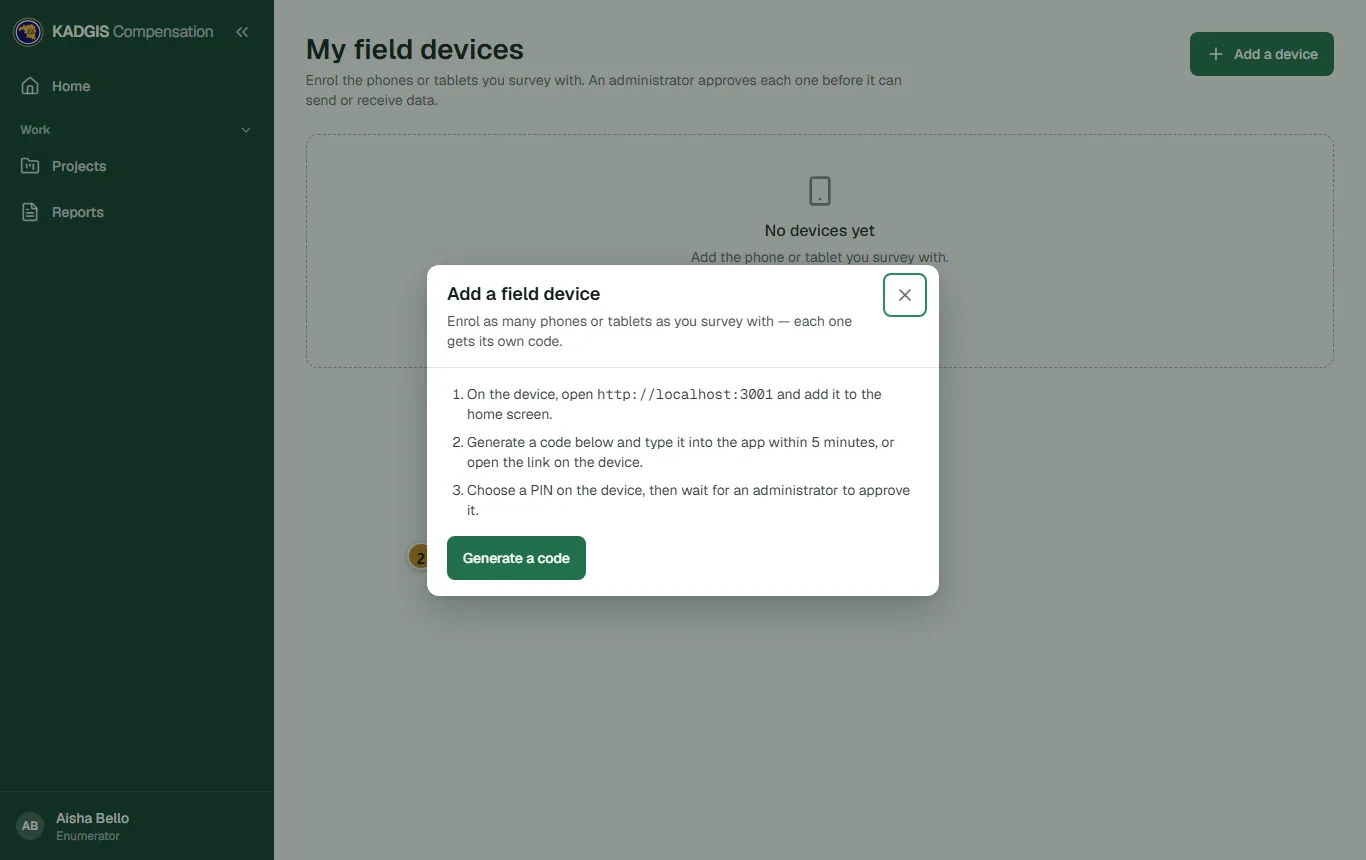
In the office app, click your name → My field devices → Add a device → Generate a code. The code works for 5 minutes.
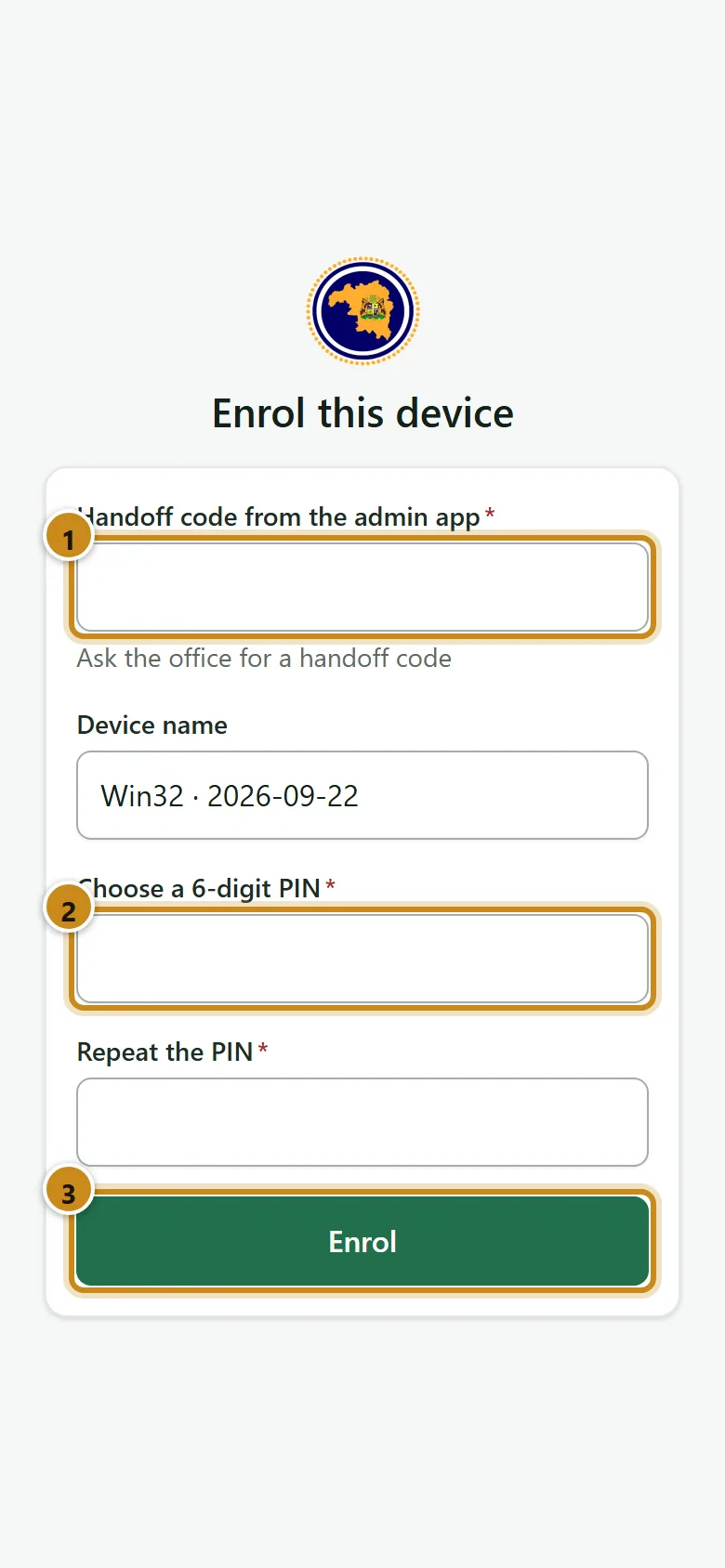
On the phone's Enrol this device screen, type the code, give the phone a name, choose a 6-digit PIN and repeat it, then tap Enrol.
The phone shows "Waiting for an administrator to approve this device." Ask your administrator to approve it and assign your ward.
Office app — Add a field device
The three set-up steps, in order.
Generate a code — the code appears with a countdown and a Copy link button.
Phone — Enrol this device
Handoff code from the office app.
Your 6-digit PIN, typed twice.
Enrol.
Add a person on the phone
Unlock the app with your PIN. On Home, tap Add a person.
Work through the six steps — Who is this person?, ID numbers, Next of kin, Bank account, Photo, signature, consent, Check and finish. Each step saves itself on the phone ("Saved").
On Check and finish, fix anything marked To do, then tap Finish this person.
Send your work to the office
Work is sent automatically when the phone has a connection. Tap Send in the bottom bar to open Is my work safe?:
"Yes. Everything on this phone has reached the office." — you are done.
"Not yet. N records and N photos are only on this phone." — connect and tap Send now.
Anything under Could not send or marked Office rejected — open to fix needs your attention: open it, correct it and tap Send again.
Needs a decision means the office changed the same record. Choose Keep mine or Use the office version. Nothing is thrown away until you decide.
Screenshot to be addedIs my work safe? screen
Phone — Is my work safe?
The answer: whether everything has reached the office.
Send now.
What is still waiting, by type.
Protect your work
Send your work every day you have signal. Records waiting for days are shown as at risk.
10 wrong PINs erase everything on the phone, including unsent work. If you forget your PIN, stop and ask your administrator.
Never use Erase local data in Settings until Is my work safe? says Yes.
Connect at least once every 30 days or the phone stops working until you sign in online.
Troubleshooting
Messages in the office app
Message
Why
What to do
Please correct the highlighted fields.
One or more fields are wrong or empty.
Look for the red outline — the cursor jumps to the first one.
Enter a valid phone number
Not a Nigerian mobile number.
Type 11 digits, e.g. 08031234567.
NIN is 11 digits / BVN is 11 digits
Wrong length, or letters typed.
Re-type the exact 11 digits.
NIN is required for individual claimants
Individual saved without a NIN.
Enter the NIN, or correct the claimant type.
Account number is 10 digits / Choose a bank
Bank step incomplete.
Copy the number from the bank card, pick the bank — or press Skip for now.
You are not scoped to that ward.
The ward is outside your assignment.
Choose your own ward, or ask your administrator.
A claimant photo is required. / The claimant signature is required. / Consent must be recorded.
Step 5 not finished.
Add the photo, sign in the box and tick consent.
Image must be JPEG, PNG or WebP / Image exceeds … MB
Unusual or very large photo file.
Use a normal camera photo, or a smaller one.
That parcel reference already exists.
Reference already used in this project.
Search the parcels list; use the correct, unique reference.
Record the parcel's owners first / No draft claims on this parcel
Owners or claims not created yet.
Ask the surveyor to record owners and the claims registration officer to create claims.
Claimant photo and signature are required / Claimant consent has not been recorded / NIN (or corporate representative) is required
An owner's onboarding is incomplete.
Open that claimant and finish the missing step, then submit again.
Ownership shares must sum to 100%
Owners' shares don't add up.
Ask the surveyor to correct the shares.
You don't have permission to view this
A tab or link your role cannot open (e.g. Claims).
Normal for your role. Press Go to Home.
We couldn't load this page
A temporary fault.
Press Try again. If it keeps happening, send the Reference code to your administrator.
Messages on the phone
Message
Why
What to do
Waiting for an administrator to approve this device.
The phone is enrolled but not approved.
Ask your administrator to approve it and assign your ward.
Wrong PIN. N attempt(s) left before local data is erased.
PIN mistyped.
Type slowly. If you are unsure, stop and call your administrator before the count reaches 0.
This phone was removed by the office.
The administrator revoked the phone.
Get a new handoff code and enter it; your PIN and saved work are kept.
Send or receive data first to load the wards
The phone has not synced yet.
Connect and tap Send now once.
No internet. Your work is saved on this phone…
No signal.
Carry on; work is sent when you connect.
Office rejected — open to fix
The office refused a record (e.g. outside your ward, missing item).
Open it, read the reason, correct, and tap Send again.
It has been more than 30 days since you signed in online.
The phone has not connected for a month.
Connect and send your work soon.
Update the app to keep sending.
The app is too old.
Connect, then tap Restart now when "An update is ready" appears.
Not protected — install the app to keep data safe
Opened in the browser, not installed.
Add the app to the home screen.
Before you call for help
Reload the page (office app) or check you have signal (phone).
Read the red message word for word — most tell you exactly what is missing.
Note the claimant name, parcel reference or claim reference, and any Reference code shown.
Contact your supervisor or project administrator with those details.
Status reference
Status
Meaning
Step X of 6 / Complete
Claimant onboarding progress.
Draft
The claim exists but onboarding is not submitted.
Onboarded
Claimant details complete; waiting for the survey.
Survey in progress
The surveyor is measuring the parcel.
Surveyed
Survey submitted; the claimant can choose money or land.
No boundary yet / Boundary captured / Location only
Parcel boundary status.
Role guide
Surveyor
You measure the affected land and record what stands on it: the boundary, the owners and their shares, every building with four photographs, and the trees and crops. The valuation is only as good as your survey.
Field app and office appTwo-factor sign-in: optionalWorks in your assigned LGA or ward
Your role at a glance
You can
Walk or draw parcel boundaries on the phone, or upload a boundary file in the office
Record owners and their shares (must total 100%)
Add buildings, building photos, trees and crops
Fill in and submit the survey
Add parcels
You cannot
Add or edit claimants (enumerators do)
Create claims or submit onboarding
Waive the boundary requirement or decide a boundary overlap
See valuations, payments or disputes
Where you fit
You pick up claims at Onboarded. Saving a survey moves them to Survey in progress; submitting moves them to Surveyed, after which the claimant chooses money or land.
Set up your phone
On the phone, open survey.plotbase.org and add KADGIS Survey to the home screen.
In the office app: your name → My field devices → Add a device → Generate a code (valid 5 minutes).
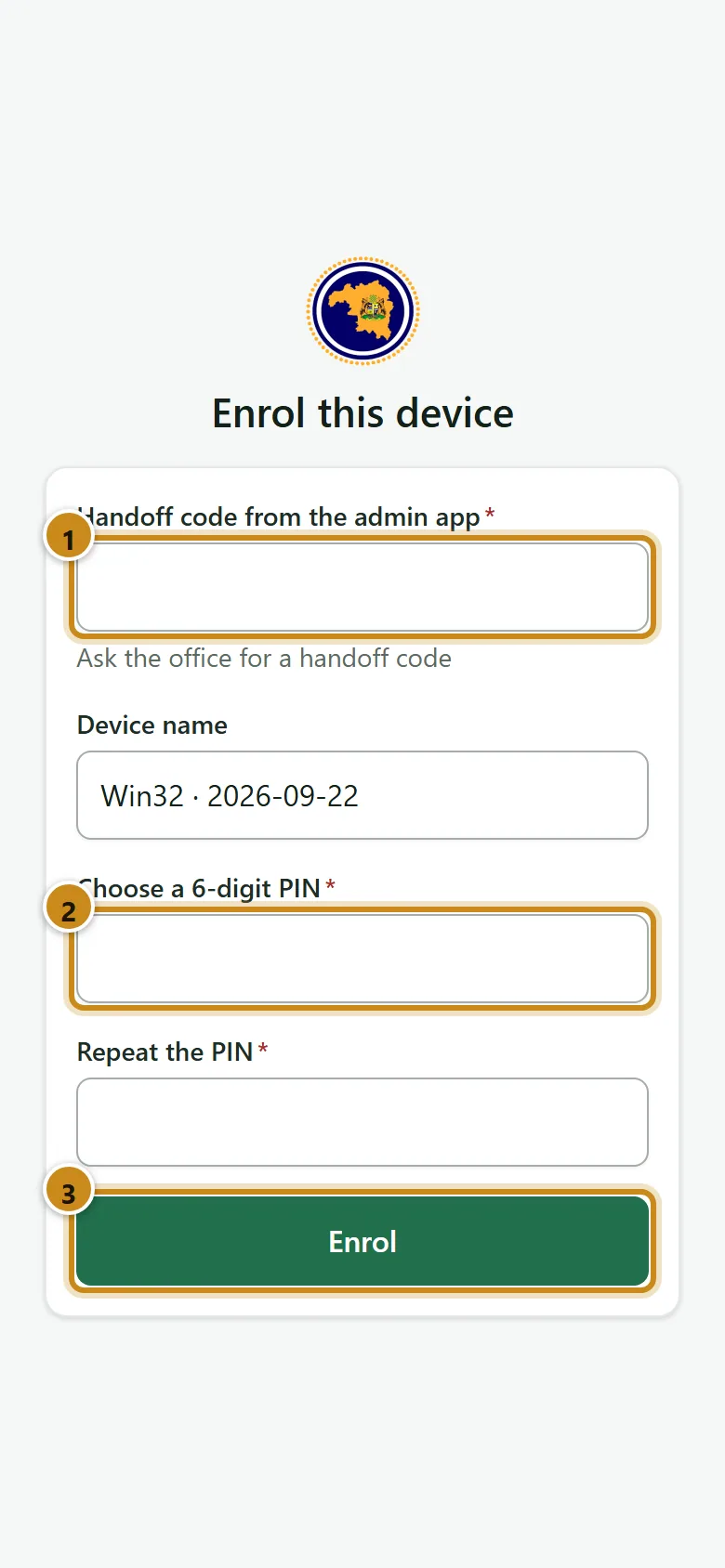
On the phone's Enrol this device screen: type the handoff code, name the phone, choose a 6-digit PIN twice, tap Enrol.
Wait for "Device approved." — your administrator must approve the phone and assign your ward.
Open Settings → Offline maps and Download the map for each ward you will visit, while you still have a connection.
Phone — Enrol this device
Handoff code from the office app.
Your 6-digit PIN, typed twice.
Enrol.
In the sun
Settings → High-visibility theme gives bigger buttons and darker text for outdoor use.
Survey a plot on the phone
Unlock with your PIN and tap Survey a plot. The survey has seven steps; each saves itself on the phone as you go.
Step
What you do
1. About the plot
Plot reference (from the survey plan or enumeration sheet), ward, land use, how the land is held, the area on the papers, and the owners: add each person and their share — shares must add up to 100%.
2. Walk the boundary
Choose how to capture it (see below).
3. Buildings
Add a building: type, length, width and floors (the floor area is worked out for you), wall material, roof, condition, year built, completion — and four photos: front, rear, left and right elevation.
4. Trees and crops
Choose the tree or crop, how many, and its age (Seedling, Young, Mature, Old); tap Add to the list.
5. Survey details
Survey date, instrument serial, plan number, beacon numbers, who was present — and, if the measured area differs from the papers by more than 10%, why.
6. Signatures
The claimant and a witness each sign and you tap Save signature; enter the witness's name.
7. Check and send
Fix anything marked To do, then Send to office.
Capturing the boundary
Mode
How
Walk
Stand on each corner beacon and tap Add vertex; walk to the next. Tap Close boundary when you are back at the start. Corners must be at least 3 m apart.
Point
For a location only: stand still while the phone averages several GPS readings.
Draw
Tap the map to add corners (use an offline map downloaded earlier). Undo last point removes a mistake.
Plan
Type coordinates from a survey plan, one point per line as longitude latitude, then Use these coordinates.
GPS accuracy
Better than 10 m — fine.
Between 10 and 50 m — accepted but flagged for review. Wait for a better fix if you can.
Worse than 50 m — refused. Move into the open, away from walls and trees, and wait.
Send work to the office
Work goes to the office automatically whenever there is a connection. Tap Send in the bottom bar to open Is my work safe? and check. Photos are sent last and can take a while on a weak signal.
Screenshot to be addedIs my work safe? screen
Phone — Is my work safe?
Whether everything has reached the office.
Send now.
What is still waiting, by type (people, land, surveys, buildings, photos).
Office rejected — open to fix: open the record, read the reason, correct it and tap Send again.
Needs a decision: someone in the office changed the same record. Compare Mine and Office field by field and choose Keep mine or Use the office version.
The parcel page (office)
Open your project → Parcels tab → the parcel. The page brings together everything about the land.
Screenshot to be addedParcel page
Parcel page
Boundary status badges and any warnings, e.g. an area difference over 10%.
Location and boundary — map, measured, declared and compensable area; Set boundary.
Owners and claims — Record owners.
Buildings — each shows "X of 4 photos".
Survey — Start survey / Continue survey.
Set the boundary from a file
The office app does not have a drawing tool — boundaries are walked or drawn on the phone. In the office you can load a boundary exported from GIS software:
Press Set boundary (or Replace boundary).
Choose the GeoJSON file under Boundary file (upload), or paste its text. Check the preview.
Press Save boundary. The shape is checked: closed, no crossing lines, at least 10 m². The message reports the measured area and the area inside the project boundary.
Overlaps
If the new boundary overlaps a neighbouring parcel by more than 5%, the claims on both parcels go In dispute until the overlap is decided. Check the neighbour's beacons before saving.
Record owners
On the parcel page press Record owners (or Edit owners).
For each owner choose the claimant, enter their Share in % and the Basis of ownership (deed, inheritance, purchase…). Add another owner adds a row.
Watch the running total — it must read Total 100.00%.
Press Save owners. Each owner becomes one claim.
Screenshot to be addedOwners of this parcel
Owners of this parcel
Owner — choose a claimant already onboarded in the project.
Share in percent.
Add another owner.
The running total — must be exactly 100%.
Save owners.
Owners can only be changed while every claim on the parcel is still a draft.
Buildings, trees and crops
Add a building
On the parcel page press Add a building.
Choose the Building type and Condition; measure the outside walls for Length and Width in metres; enter Number of floors, Wall material, Roof, Year built (an estimate is fine) and How complete (100 for a finished building).
Press Add building.
Back on the parcel page, use Add photo on the building four times: Front, Back, Left side, Right side. A photo taken more than 200 m from the parcel is flagged for review.
Screenshot to be addedAdd a building form
Add a building
Building type and condition.
Length and width of the outside walls, in metres.
Add building.
Trees and crops
Press Add trees or crops, choose the tree or crop, How many (trees, or stands for crops) and the Age, then Add.
Complete and submit the survey
On the parcel page press Start survey (or Continue survey).
Under How the parcel was measured fill in the date, method, GPS accuracy, instrument, plan number and beacons.
Under Who was present enter the witness and others present.
Under Area check, if measured and declared areas differ by more than 10%, write why.
The claimant and the witness sign in the two Signatures boxes. Press Save survey.
When every item in Ready to submit? is ticked, press Submit survey and confirm. The survey can no longer be edited.
Screenshot to be addedSurvey page with Ready to submit checklist
Survey page
Area check — the explanation is required above 10%.
Claimant and witness signatures.
Ready to submit? — every line must be ticked.
Submit survey.
The checklist
Parcel boundary captured · No unresolved boundary overlaps · Explanation for an area difference over 10% · Every building has at least 4 photos · Claimant and witness have signed · Claims are in survey (save the survey after onboarding has been submitted).
Troubleshooting
Office app
Message
Why
What to do
Invalid JSON / Expected a GeoJSON Polygon or MultiPolygon / A parcel boundary must be a single Polygon.
The boundary file is not a single polygon.
Export one polygon as GeoJSON (WGS84) from your GIS software.
Polygon is self-intersecting / needs at least three vertices / below the 10 sqm minimum
The shape is invalid.
Fix the shape in your GIS software, or re-walk it on the phone.
A claim on this parcel has passed the survey stage; return it for rework before changing the geometry
The boundary is locked after survey.
Ask a verification officer to send the claim back for correction.
Shares sum to X%, expected 100%
Owners' shares don't add up.
Adjust until the total reads 100.00%.
Each owner needs a claimant and a share percentage.
An owner row is empty.
Fill it in or remove it.
Save survey metadata and signatures first
Submitted before saving.
Press Save survey, then submit.
No claims are in survey on this parcel
Onboarding not submitted yet, or survey not saved since.
Ask the enumerator to submit onboarding, then save the survey again.
A closed polygon is required unless a geometry override is recorded
No boundary.
Capture the boundary, or ask the project administrator to waive it.
Unresolved boundary overlap
An overlap with a neighbour is still open.
It must be decided on the parcel page by an authorised officer after a joint re-survey.
Declared vs computed area differs by more than 10%; a surveyor note is required
No explanation for the difference.
Fill in the Area check explanation and save.
Every structure needs at least four photos
A building has fewer than 4 photos.
Add photos until each shows "4 of 4 photos".
Claimant and witness signatures are required
Missing signatures.
Both sign, then save.
No compensable area inside the project boundary
The parcel lies outside the project area.
Check the boundary; report it to the project administrator.
Phone
Message
Why
What to do
GPS accuracy is worse than 50 m — wait for a better fix
Weak satellite signal.
Move into the open and wait; turn on high-accuracy location.
Move at least 3 m from the last vertex
Corners too close.
Walk to the next beacon before adding a point.
Walk or draw the boundary (at least 3 points)
Boundary not closed.
Add at least three corners and Close boundary.
This boundary overlaps …
It crosses another plot on the phone.
Check the beacons. Above 5% the office opens a dispute.
Could not save the photo. Try again.
Camera or storage problem.
Allow camera access for the app; free space on the phone.
This map would go over the … MB limit.
Offline maps full.
Remove a map you no longer need, then download.
No maps for your wards yet. Ask the office to build one.
No map pack built for your ward.
Ask the project administrator to build one.
The downloaded file is damaged. Try again.
Download interrupted.
Download again on a steadier connection.
Office rejected — open to fix
The office refused the record (e.g. outside your assigned ward).
Open it, correct it and Send again; if it is outside your ward, ask for the assignment.
Wrong PIN. N attempt(s) left before local data is erased.
PIN mistyped.
Stop before 0 — after 10 wrong PINs everything on the phone, including unsent surveys, is erased.
This phone was removed by the office.
The phone was revoked.
Enter a new handoff code; your PIN and saved work are kept.
Never lose a survey
Send every day you have signal. Never use Erase local data until Is my work safe? says Yes. If a phone is lost or stolen, tell your administrator at once so it can be revoked.
Role guide
Valuation Officer
You turn a submitted survey into a money award using the project's published rate card, then run the ten automatic checks that make sure the award is consistent, within limits and payable to the right person.
You start at Compensation type chosen (money). Calculating moves the claim to Valued; passing checks moves it to Awaiting checks, ready for the Verification Officer.
Find claims to value
Go to Reports in the side menu, find your project's card and click Dashboard. (Or use the bookmark to your project's Claims list — ask your project administrator for the link once and bookmark it.)
Click the Claims tab.
Set Status to Compensation type chosen and Compensation type to Money, then press Apply. Bookmark this filtered list.
Screenshot to be addedClaims list filtered for valuation
Claims list
Project tabs — you can open Dashboard and Claims.
Search by claim reference, claimant or parcel.
Status and Compensation type filters.
Status of each claim and its share of the award.
"No rate card chosen for this project"
If this warning shows above the list, nothing can be valued. Ask the project administrator to choose a published rate card on the project Overview.
Reading a claim page
Screenshot to be addedClaim page for a money claim
Claim page
Claim reference, status and compensation type.
The journey bar — green ticks are done, the gold marker is where the claim is now.
Action buttons — only those you may use at this stage appear.
Valuation and Automatic checks cards.
People (who created, surveyed, valued, verified, approved) and History.
Calculate the valuation
Open a claim at Compensation type chosen with type Money.
Check the survey is sensible (open the parcel link: boundary, buildings with photos, trees and crops).
Press Calculate valuation, read the dialog and press Calculate valuation again.
Every co-owner's claim on the parcel is valued together, using the project's chosen rate card. The message "Valuation computed for every co-owner claim." confirms it, and the claim becomes Valued.
Recalculating
If the survey or rates change after valuation, a user with the re-valuation permission can use Recalculate, giving a reason. A new version is created, the old one is kept on record, and the checks must be run again. Ask your supervisor if you need this.
Read the breakdown
Screenshot to be addedValuation breakdown
Valuation (version N)
One line per item, with the working: land (area × rate, × the customary factor if undocumented), each building (area × rate, less depreciation for age and condition), trees and crops (count × rate), and allowances (a percentage).
Total for the whole parcel.
This claimant's share — the total × their ownership share.
Who valued it and when; any recalculation reason and earlier versions kept on record.
Sense-check each line: a building much larger than the parcel, a rate that looks out of line, or a missing allowance should be raised before you run the checks.
Run the automatic checks
On a Valued claim press Run checks, then Run checks in the dialog.
If all ten pass — "All ten checks passed." — the claim moves to Awaiting checks and waits for the Verification Officer.
If any fail — "Monetary check failed — see the report." — the claim stays at Valued. Read the red rows.
Screenshot to be addedAutomatic checks report
Automatic checks
Overall result: All passed, Failed or Overridden.
Each check with a tick or cross and the detail.
Who ran it and when; a note if two approvers will be needed.
Check
Passes when
If it fails
Identity
NIN verified (and BVN, or a verified representative for companies/communities).
Verification Officer re-checks the NIN/BVN on the claimant page.
Name match
The BVN name matches the claimant at 85% or more.
Correct the claimant's name, or re-check the BVN.
Uniqueness
No other live claim shares this NIN, BVN or parcel.
Verification Officer merges duplicates or rejects the duplicate claim.
Geometry
A full, valid boundary with no unresolved overlaps.
Surveyor re-surveys; overlap decided on the parcel page.
Evidence
Every building has 4 photos; survey signed by claimant and witness.
Claim sent back to the surveyor.
Arithmetic
Recalculating gives the stored total.
Recalculate the valuation.
Rate integrity
The rate card version used is published.
Recalculate against the published card.
Threshold
Always passes — it notes whether two approvers are needed.
Nothing to fix.
Bank
Account found and the name matches at 85% or more.
Correct the bank account on the claimant page, then re-check it.
Separation
Checked at approval: the approver did not create, survey or value the claim.
A different approver approves.
When a check fails
You do not fix a failed check by editing the valuation. Pass the claim to whoever owns the problem:
Identity, name match, bank, uniqueness → the Verification Officer (claimant page).
Geometry, evidence → the Verification Officer sends the claim back to the surveyor.
Arithmetic, rate integrity → your supervisor, for a recalculation.
Once fixed, run the checks again. Only a Senior Approver can override a failed check, with a written reason that stays on the record.
The chosen version is a draft or has been replaced by a newer one.
Project administrator picks the current published version.
No land rate for … in ward …
The rate card has no rate for that land use and ward.
Project administrator adds it and publishes a new version.
No structure rate for …/…/N floor(s)
Missing building rate.
As above.
No asset rate for …
Missing tree or crop rate.
As above.
Rate card version has no depreciation schedule
The rate card is incomplete.
Project administrator fixes the rate card.
Ownership shares sum to N % / The parcel has no owners
Owners wrong or missing.
Surveyor corrects the owners.
The parcel has no compensable area (survey not complete)
Survey not finished.
Surveyor completes and submits the survey.
… is on the LAND_30 track / un-elected track
A co-owner chose land, or has not chosen yet.
All co-owners of a parcel must choose money before it can be valued.
Compute the valuation first
Checks run before a valuation exists.
Calculate first.
Cannot computeValuation a claim in status …
The claim is at a different stage.
Reload; check the journey bar.
You don't have permission to view this
A tab your role does not use (e.g. Overview, Parcels list).
Normal. Use Dashboard and Claims.
Something went wrong. Please try again.
A temporary fault or someone changed the claim at the same moment.
Reload and try again.
Role guide
Verification Officer
You are the check between the field and the approvers. You confirm that each claimant is who they say they are, that nobody is claiming twice, that the file is complete — and you handle the disputes that pause a claim.
Office appTwo-factor sign-in: requiredMoney and land claims
Your role at a glance
You can
Re-run NIN, BVN and bank checks
See a full identity number once, with a recorded reason
Merge duplicate claimants, or mark them as different people
Verify claims; send them back for correction; resume them
Open, update and close disputes
Run the automatic checks; view the audit trail
You cannot
Verify a claim you created, surveyed or valued
Approve, suspend, reject or withdraw claims (approvers do)
Change valuations or rates
Where you fit
Money claims reach you at Awaiting checks; land claims at Plot being allocated. Verifying moves them to Verified, ready for an approver.
Find your work
Your side menu has Home and Audit trail. Keep bookmarks to your project's Claims, Claimants and Disputes pages — ask your project administrator for the links once.
Claims to verify: Claims tab → Status Awaiting checks (money) or Plot being allocated (land) → Apply.
Identity problems: Claimants tab → Show Identity needs a check.
Duplicates: the Claimants list header shows "N possible duplicates to review".
Disputes: Disputes tab, filtered by Status Open.
Screenshot to be addedClaimants needing an identity check
Claimants — Identity needs a check
"Possible duplicates to review" count.
Show filter set to Identity needs a check.
NIN and BVN result per claimant.
Review identity
Open the claimant. The Identity and bank account card shows each number's last four digits, the result and the name on the national record with a match percentage.
Screenshot to be addedIdentity and bank account card with verification actions
Identity and bank account
Result and "Name on record (N% match)".
Check NIN again / Check BVN again / Check bank account again.
Show full number — shown once; your name and reason go to the audit trail.
Previous checks.
Result
Your decision
Needs a manual check
Compare the national name with the claimant's documents in the file. If it is the same person (spelling, order of names), record that in the claim when you verify. If not, send the claim back to the enumerator.
Not found
The number is wrong or does not exist. Send back to the enumerator to correct it from the NIN slip.
Could not check
Service outage. Press Check NIN again later.
Name does not match (bank)
The account may not be the claimant's. It must be corrected before payment — never accept a third party's account.
Duplicates
The Possible duplicates card on a claimant lists others in the project with the same NIN, BVN or phone number, or a very similar name, with a similarity score.
Screenshot to be addedPossible duplicates card
Possible duplicates
Why they match (Same NIN, Same phone number, Similar name…) and the score.
Not a duplicate — both records stay; write how you know they differ.
Merge into this record — the other record's parcels, claims and documents move here.
Merging cannot be undone
Open both records and compare photos, dates of birth and addresses before merging. Merge into the record with the better data. Merging is refused if the other record already has an approved claim.
Verify a claim
Open the claim. Check: identity is Verified or resolved; for money claims the automatic checks passed; for land claims the plot reservation matches the entitlement; there is no open dispute.
Look at People: if you created, surveyed or valued the claim, leave it for another officer.
Press Verify claim, read the dialog and press Verify claim.
Screenshot to be addedVerify this claim dialog
Verify this claim? — you confirm the survey, valuation or plot reservation and the claimant's identity are in order. The claim then waits for an approver.
Send back for correction
On the claim press Send back for correction.
Under Return to choose the earlier stage: Surveyed (survey problems), Compensation type chosen, Valued or Land entitlement worked out.
Under What needs to be corrected? write clearly what is wrong — the people responsible see this text.
Press Send back. The claim becomes Sent back for correction.
Screenshot to be addedSend this claim back for correction dialog
Send this claim back for correction
Return to — must be an earlier stage than the current one.
What needs to be corrected? — at least 10 characters.
When the correction is done, open the claim and press Resume at "stage" → Resume claim.
Disputes
Open a dispute
On the claim press Open a dispute.
Choose what it is about — Boundary overlap, Ownership, Identity, Valuation, Plot allocation or Other — and give a Title, who raised it, and Details in the complainant's own words.
Press Open dispute. The claim is paused (In dispute) until every dispute on it is closed.
Work a dispute
Screenshot to be addedDisputes register
Disputes
Count of open disputes.
Formal disputes — filter by status and type.
Unresolved boundary overlaps — raised automatically by the survey check (over 5%).
Update — change the status to Under review or At tribunal (a tribunal reference is then required) and add to the description.
Close dispute — choose Resolved or Withdrawn by the person who raised it and write how it was settled (at least 20 characters; kept on the claim's record). If it was the last open dispute, the claim continues from where it was paused.
Troubleshooting
Message
Why
What to do
NIN/BVN verification is still unresolved
The NIN is not Verified.
Re-check it, or send back to the enumerator to correct it.
An open dispute blocks verification
A dispute or an unresolved boundary overlap on the parcel.
Close the dispute, or have the overlap decided on the parcel page.
The verifier cannot be the creator, surveyor or valuer
You worked on this claim.
Leave it for another verification officer.
Cannot verify a claim in status …
The claim is not at Awaiting checks / Plot being allocated.
Reload; for money claims the checks must pass first.
The rework target must be an earlier stage
You chose a stage the claim has not reached.
Pick an earlier stage.
Give a reason of at least 10 characters.
Reason too short.
Write a fuller reason.
The source claimant has an approved or settled claim; merging is not permitted
The other record is already approved or paid.
Do not merge; raise it with a senior approver.
One of the claimants is already merged
Already handled.
Open the surviving record.
Enter the tribunal reference.
Status set to At tribunal without a reference.
Enter the reference.
Describe how the dispute was settled in at least 20 characters.
A tab your role doesn't use (e.g. Overview, Payments).
Normal — use Claims, Claimants and Disputes.
Role guide
Allocation Officer
For claimants who choose land instead of money, you work out how much land they are owed, turn that into whole plots in a published resettlement layout, and reserve those plots for verification and approval.
Office appTwo-factor sign-in: optionalLand claims (30% of area)
Your role at a glance
You can
Calculate land entitlements
View layouts and their plot stock
Reserve and release plots
View the balance ledger and reports
You cannot
Create or publish layouts (project administrator)
Verify, approve or revoke allocations
Approve an allocation of plots you reserved
Where you fit
You start at Compensation type chosen (land). Calculating moves the claim to Land entitlement worked out; reserving every plot moves it to Plot being allocated. After verification and approval it becomes Plot allocated.
Find land claims
Reports → your project's card → Dashboard, then the Claims tab. (Bookmark it.)
Set Compensation type to Land (30% of area) and Status to Compensation type chosen; press Apply.
The Ledger tab also has a Land claims button.
Your usable tabs are Dashboard, Claims, Layouts and plots, and Ledger.
Work out the entitlement
Open a land claim at Compensation type chosen.
In the Land entitlement card press Calculate entitlement.
Choose the Resettlement layout — each option shows its plot size and ward. Only published layouts are offered.
Press Calculate. All co-owners on the parcel are calculated together.
Screenshot to be addedCalculate the land entitlement dialog
Calculate the land entitlement
The co-owners calculated together.
Resettlement layout.
Calculate.
No published layout?
The dialog says "There is no published layout in this project yet." Ask the project administrator to publish one.
What the figures mean
Screenshot to be addedLand entitlement card
Land entitlement
Eligible for a plot or Not eligible (with the reason).
Entitlement — land owed.
Plots — how many whole plots of the layout's size.
Leftover area and Cash for leftover area.
How this was worked out — the full working.
Figure
How it is worked out
Entitlement
Compensable area × the claimant's share × the project's land share (normally 30%). Projects set to "by land value" convert the land's value to area at the layout's land rate.
Plots
Entitlement ÷ plot size, rounded down (or up if the project rounds up).
Leftover area
What is left after whole plots. Depending on the project's rule it is paid in cash at the land rate, or forfeited.
Not eligible
The entitlement is below the project's smallest plot. The claim should be on money — ask a verification officer to send it back to "Compensation type chosen".
Reserve plots
In the Plot allocation card press Reserve N more plots.
Look at the map, then tick the plots under Choose the plots — no more than the number owed.
Press Reserve selected plots.
Screenshot to be addedReserve plots dialog
Reserve plots
The layout map.
Choose the plots — block, plot number and area.
Reserve selected plots.
When the entitlement is fully covered, the claim moves to Plot being allocated and the message shows when the hold expires. Reserved plots are held for 48 hours — tell the verification officer and approver so they act within that time.
To check stock, open Layouts and plots → the layout: the Plots card shows available, reserved and allocated counts, and which claim holds each plot.
Release a plot; expired holds
To free a reserved plot, press Release on its row and confirm. The plot becomes available again, and a claim at Plot being allocated drops back to Land entitlement worked out.
When a hold expires
After 48 hours unapproved, the plot shows Hold expired and returns to stock. A claim at Plot being allocated goes back to Land entitlement worked out — reserve again.
If the claim was already Verified, it does not move back; the approver is refused with "a hold may have expired". Ask the verification officer to send it back to Land entitlement worked out, then reserve again.
A first approval (large cash remainders need two) extends the hold by another 48 hours.
After approval: the letter of allocation
An approver (not you) approves the allocation. The card shows "The letter of allocation is being prepared…", then a Letter of allocation (PDF) link with its fingerprint, and the claim becomes Plot allocated. The download link lasts 5 minutes — reload the page for a fresh one.
The balance ledger
The Ledger tab shows, for every land claimant, what they are owed, what has been allocated and what remains. It is permanent: entries are never edited, only reversed.
Screenshot to be addedBalance ledger
Balance ledger
Totals: owed, allocated, remaining, cash owed and paid.
Balances by claim — Balanced or Out of balance.
Run balance check now.
An Out of balance row means the ledger and the entitlement disagree — report it to your supervisor with the claim reference.
Troubleshooting
Message
Why
What to do
Choose a published layout. / The layout must be PUBLISHED
No layout chosen, or it is a draft.
Project administrator publishes the layout.
The project has no active rate card version / No land rate for …
The land rate is needed for the leftover cash.
Project administrator chooses a rate card or adds the rate.
Entitlement is below the minimum for the land track
Too little land for a plot.
Claim should be money; ask verification to send it back.
… is on the MONETARY track
A co-owner chose money.
All co-owners must choose land.
… has N reserved/allocated plot(s) — release them before recomputing
Recalculating while plots are held.
Release them first.
Select at least one plot. / Entitlement is N plot(s); M already reserved
None or too many ticked.
Tick the right number.
Plot B/P is reserved / allocated / withdrawn
The plot is no longer free.
Choose another.
Plot B/P was reserved by someone else a moment ago
Two officers picked the same plot.
Reopen the dialog and choose another.
No available plots are left in this layout.
Layout full.
Ask the project administrator about another layout.
Allocation is ALLOCATED
Only held plots can be released.
A senior approver must revoke an approved allocation.
Plots can be reserved only for LAND_30 claims in ENTITLEMENT_COMPUTED
Wrong stage.
Calculate the entitlement first.
You don't have permission to view this
A tab your role doesn't use.
Normal — use Dashboard, Claims, Layouts and plots, Ledger.
Role guide
Approver
You are the point at which the state commits money or land. You approve verified claims and allocations, group approved awards into payment batches, and approve batches created by a colleague.
Office appTwo-factor sign-in: requiredEvery approval asks you to confirm it's you
Your role at a glance
You can
Approve verified money claims and land allocations
Create payment batches and approve a colleague's batch
Generate and download treasury files
Send back, suspend, reject or withdraw claims
View reports and the audit trail
You cannot
Approve a claim you created, surveyed or valued
Approve a batch you created, or plots you reserved
Give the second approval on large awards (Senior Approver)
Override checks or reverse approvals (Senior Approver)
Where you fit
Claims reach you at Verified. Approving makes them Approved; a batch makes them Payment scheduled, and treasury confirmation makes them Paid.
Find claims to approve
Your menu has Reports and Audit trail. To reach a project: Reports → the project's card → Dashboard. From there use the Claims and Payments tabs — the other tabs are not for your role.
Open the Claims tab.
Set Status to Verified and press Apply. Bookmark it.
"Awaiting second approver" under a status means a first approval has been given and a Senior Approver must complete it.
Screenshot to be addedVerified claims waiting for approval
Claims — Verified
Status filter.
Each claim's share of the award.
"Awaiting second approver".
Before you approve
Satisfy yourself that
the survey is complete and photographed, and the claimant and witness signed;
the valuation uses the project's current rate card and looks sensible line by line;
every automatic check passed, or carries a written override;
identity and bank account are verified in the claimant's own name;
there is no open dispute; and
you are not named under People as creator, surveyor or valuer.
Approve a money claim
Open a Verified money claim and review it.
Press Approve claim, then Approve claim in the dialog.
If asked, Confirm it's you (password and authenticator code). You return to the claim — press Approve claim again.
Screenshot to be addedClaim page ready for approval
A verified claim
The journey bar.
Approve claim and the other actions.
Automatic checks — must show All passed or Overridden.
People — make sure you are not listed.
At or below the project's two-approver amount: "Claim approved; monetary award recorded." The claim is Approved.
Above it: "First approval recorded — a different Senior Approver must complete it." The claim stays Verified with the note Waiting for a second approver.
Confirm it's you
Approvals ask for your password and authenticator code again. Once confirmed you will not be asked again for five minutes, so approve a run of claims together.
Approve a land allocation
Open a Verified land claim. Check the Plot allocation card: the plots match the entitlement and the holds have not expired.
Press Approve allocation in that card and confirm. (Land claims are approved here, not with Approve claim.)
"Allocation approved; the Letter of Allocation is being generated." A Letter of allocation (PDF) link appears and the claim becomes Plot allocated.
You cannot approve plots you reserved yourself. If the cash for leftover area is above the two-approver amount, a Senior Approver gives the second approval (the holds are extended by 48 hours meanwhile).
Payment batches
Approved money claims are paid in batches: one person creates the batch, a different person approves it, the treasury files are generated, and the batch is marked paid when treasury confirms.
1 · Create a batch
Open the Payments tab and press New payment batch (N waiting).
Tick the approved claims to pay together. Claims whose bank account is not verified are greyed out with the reason — they must be fixed on the claimant's page first.
Press Create batch. The batch opens as Draft; use Remove on a line to take a claim out.
Screenshot to be addedNew payment batch page
New payment batch
Warning: claims that cannot be paid yet, and why.
Tick the claims to include.
A greyed-out claim and its bank problem.
Create batch.
2 · Approve a batch (a different approver)
Open the batch from the Payments tab and check the lines: payees, amounts, net total.
Press Approve batch and confirm it's you.
Every claim becomes Payment scheduled and the treasury files are generated in the background. Reload the page after a few seconds: the batch shows Sent to treasury, with CSV file and Spreadsheet links.
The claims in the batch (bank account numbers are hidden).
Batch details — who created and approved it, and the treasury file links.
3 · Send to treasury and record payment
Download the CSV file or Spreadsheet and send it to treasury by the agreed channel. Links last 5 minutes — reload the page for fresh ones.
When treasury confirms payment, the officer responsible for recording payments opens the batch, presses Mark as paid and enters the Treasury payment reference. Every claim becomes Paid.
Who records payment
Marking a batch paid needs a separate permission that the Approver role does not include. Your project administrator names the treasury liaison officer who does it.
Cancelling
Cancel a Draft batch freely — its claims go back to the waiting list. Do not cancel an approved batch without speaking to a Senior Approver: its claims stay at Payment scheduled and cannot be re-batched until an approval is reversed.
Other claim actions
Button
Use it when
Reason needed
Send back for correction
Something must be fixed at an earlier stage. Choose the stage and say what is wrong.
10+ characters
Resume at "stage"
The correction has been made.
—
Suspend / Lift suspension
Pause a claim (e.g. pending enquiries) and continue later.
5+ characters
Reject
Close the claim without compensation. Cannot be undone.
10+ characters
Withdraw
The claimant no longer wishes to claim.
5+ characters
Reject and Withdraw are refused once a claim is approved — a Senior Approver must reverse the approval first.
Troubleshooting
Message
Why
What to do
The approver cannot be the creator, surveyor or valuer of this claim
You worked on it.
Leave it for another approver.
Monetary check failed at approval: …
The checks are re-run when you approve and one failed (including Separation).
If Separation: another approver. Otherwise send the claim back to Valued.
The second approval requires … (Senior Approver)
Only a Senior Approver gives the second approval.
Ask a Senior Approver.
Separation of duty: the batch creator cannot approve it
You created the batch.
Another approver approves it.
Separation of duty: the officer who reserved the plots cannot approve the allocation
You reserved the plots.
Another approver approves it.
Land-track claims are approved through the allocation panel
Used Approve claim on a land claim.
Use Approve allocation in the Plot allocation card.
Expected N live reservation(s), found M — a hold may have expired
A 48-hour plot hold ran out.
Ask the allocation officer to reserve again (verification sends it back first).
Cannot approve a claim in status …
Someone else has moved the claim on.
Reload the page.
Cannot reject a claim in status APPROVED
Reject/withdraw after approval.
A Senior Approver reverses the approval first.
Select at least one approved claim.
Nothing ticked.
Tick at least one claim.
… payee bank account is not RESOLVED / … is already in a batch
The claim changed after the page loaded.
Reload and choose again.
The batch has no lines / Batch is …
Wrong batch state.
Reload; cancel empty batches.
Invalid credentials. (on Confirm it's you)
Wrong password or code. Repeated failures lock your account.
Check carefully; after 5 failures wait 15 minutes.
Approvals are not permitted while impersonating
An administrator is viewing the system as you.
They must stop; approvals are never allowed in that mode.
You don't have permission to view this
Overview, Claimants, Parcels and other tabs are not for your role.
Normal — use Dashboard, Claims and Payments.
Role guide
Senior Approver
You hold every Approver power, plus the four that need seniority: the second approval on large awards, overriding a failed automatic check, reversing a past approval, and revoking a land allocation. Each is recorded with your written reason.
Office appTwo-factor sign-in: requiredPassword renewal every 180 days
Your role at a glance
Everything in the Approver guide applies to you: finding verified claims, approving claims and allocations, and payment batches. This guide covers only your extra powers.
Extra powers
Second approval above the project's two-approver amount
Override a failed automatic check
Reverse an approval before payment
Revoke an approved land allocation
Still not allowed
Giving both approvals on the same claim
Approving a claim you created, surveyed or valued
Reversing a claim that has been paid
Every action here
asks you to confirm it's you (password and authenticator code), needs a written reason, and is kept permanently on the claim's history and the audit trail.
Give the second approval
Claims tab → Status Verified. Claims showing "Awaiting second approver" need you.
Open the claim. The yellow note says who gave the first approval — it must not be you.
Review it as a first approver would, then press Give second approval and confirm.
Screenshot to be addedClaim waiting for a second approver
Waiting for a second approver
"Waiting for a second approver" — who gave the first approval.
Give second approval.
People — first and second approver.
For land claims with a large cash remainder, the second approval is given with Give second approval in the Plot allocation card.
Override a failed check
Use this only when a check fails for a reason you have investigated and accept — for example a bank name that differs only by a known alias, documented in the file.
Open the claim — it is at Valued and the Automatic checks card shows Failed.
Press Override failed check.
Write why the claim should proceed despite the failure (at least 20 characters) and press Override check.
Screenshot to be addedOverride the failed check dialog
Override the failed check? — the original result stays on record with your reason, and the override appears in the exceptions report.
The card then shows "Overridden by … on …: reason" and the claim can proceed to verification. The override lasts until the claim is re-valued. It is not available once a claim is Verified — send the claim back to Valued first.
Reverse an approval
Available on claims that are Approved, Payment scheduled or Plot allocated. Not possible once Paid.
Press Reverse approval.
Under Move back to choose Verified, Valued or Land entitlement worked out.
Explain why in at least 20 characters and press Reverse approval.
Screenshot to be addedReverse a past approval dialog
Reverse a past approval
Move back to.
Why is the approval being reversed?
Known issue
The option Awaiting checks in "Move back to" is currently refused with "Invalid reversal target". Choose Valued instead — the checks are then run again.
Use reversal to release claims left at Payment scheduled by a cancelled approved batch: reverse to Verified, re-approve, and put them in a new batch.
Revoke a land allocation
On an approved or allocated land claim, press Revoke allocation in the Plot allocation card.
Give a reason of at least 20 characters and confirm.
"Allocation revoked; the plots are available again and the claim is back at entitlement." The ledger entries are reversed (never deleted).
Writing a good reason
Your reasons will be read by auditors and, possibly, a tribunal. A good reason says what was wrong, what evidence you relied on, and who you consulted.
Example
"BVN name 'Aminu Sani Bello' vs claimant 'Sani Aminu Bello' — same person, names reordered. Confirmed against NIN slip and sworn declaration dated 12/09/2026 on file."
Troubleshooting
Message
Why
What to do
The second approver must differ from the first
You gave the first approval.
Another Senior Approver must give the second.
A second approver must complete this approval
A first approval already exists.
Use Give second approval.
Invalid reversal target
"Awaiting checks" chosen (known issue) or an invalid stage.
Choose Verified, Valued or Land entitlement worked out.
Give a reason of at least N characters. / A written justification of at least 20 characters is required.
Reason too short.
Write a fuller reason.
Run the monetary check first
No check result to override.
Ask the valuation officer to run the checks.
Nothing to revoke in status …
Wrong stage.
Reload the page.
Invalid credentials. (Confirm it's you)
Wrong password or code.
Re-enter carefully; repeated failures lock your account.
Set a new password
Your password is 180 days old.
Choose a new one; it cannot repeat your last five.
You can see every part of the system and change none of it. Your tools are the project dashboards, the operational and financial reports, full record exports of individual claims, and the tamper-evident audit trail.
Office appRead-onlyTwo-factor sign-in: optional
Your role at a glance
You can
Open every project and every tab, read-only
View users, roles, phones, reference lists
Run and export every report
Prepare a full record export of any claim
Search and export the audit trail; run the integrity check
You cannot
Change anything — no action buttons are shown
See award amounts on claim and payment pages (they are on the dashboard and financial reports)
Download treasury payment files
Project dashboard
Projects → a project → Dashboard. Figures are a snapshot refreshed every 10 minutes; Refresh figures rebuilds it now.
Screenshot to be addedProject dashboard
Dashboard
"Figures as of" time and Refresh figures.
Claims, Total awards, Paid out, Still to pay.
Claims by stage.
Reports for this project.
Reports
Reports shows a card per project and a Whole platform card.
Report
Use it to
Payment schedule
Every batch line: payee, bank, share, net payable, running total, paid date.
Allocation register
Every plot: status, claim, claimant, entitlement, cash for leftover area, letter.
Duplicate & exception register
Open exceptions (incl. overridden checks) and open duplicate matches.
Surveyor productivity & data quality
Surveys submitted and returned, photos per building, variance-note, geotag-flag and overlap rates.
Valuation variance
Awards per m² against the ward average; outliers over 2 standard deviations are flagged.
Permission-denial report
Who tried to open pages they are not allowed to, and how often.
Device & sync health
Each phone: last sync, changes and rejections in 24 h, open conflicts, photos waiting.
Exporting
At the bottom of a report choose Export as CSV or Excel (XLSX) and press Export.
The export page shows Being prepared and refreshes itself; then "Your file is ready".
Download the file. Links last 10 minutes — reload for a fresh one. Each file has a fingerprint to prove it has not been altered.
Screenshot to be addedA report with export controls
A report
The report and its row count.
Export as and Export.
See all exports (Reports page) lists everything you have exported.
Examining a claim
The claim page's History shows every status change with who, when and why; People shows who created, surveyed, valued, verified and approved it.
On the claim, Full record export card → Prepare export → confirm.
You get a PDF and a data file with every event, identity check, document, valuation and payment for that claim.
Screenshot to be addedClaim history and full record export
Claim — History and Full record export
People.
History, newest first.
Prepare export.
The audit trail
Audit trail records every action, including refused attempts, with who, when, from which address and on which record.
Screenshot to be addedAudit trail
Audit trail
Filters: Action, Actor user id, Record id.
Export CSV and the integrity check link.
Details — the full entry, including its hash and the previous entry's hash.
To follow one claim, copy its id from the browser address and paste it into Record id. To follow one person, use their user id from the Users page.
Integrity check
Audit trail integrity check → Run check now. Every entry's fingerprint is recomputed and checked against the one before it. The check also runs every night at 02:00.
Intact — "Chain intact across N rows."
Tampering detected — "Chain broken at row N." Record the time and row and report it at once to the head of department.
Lines of enquiry
Overrides: Duplicate & exception register → overridden checks; read each reason on the claim.
Separation of duties: on sampled claims, compare People — creator, surveyor, valuer, verifier and approvers should differ.
Outliers: Valuation variance → claims flagged over 2σ.
Reversals and revocations: audit trail filtered by those actions; read the justifications.
Payments: Payment schedule against treasury statements; batch creator and approver must differ.
Access: Permission-denial report; users holding administrator or senior approver roles.
Field data: Surveyor productivity — high geotag-flag or overlap rates.
Troubleshooting
Message or problem
Why
What to do
"A valuation has been recorded. You don't have permission to see the amounts."
Amounts are hidden on claim pages for your role.
Use the Dashboard and the Payment schedule report.
"Only officers with export rights can download these"
Treasury files are restricted.
Use the Payment schedule report instead.
These figures may be a few minutes old.
Dashboard snapshot is stale.
Press Refresh figures, wait a few seconds, reload.
The export could not be prepared
The export failed.
Try again; if it repeats, report it with the time.
Download link expired
Links last 10 minutes.
Reload the export page.
Large log — verification queued for the worker.
The trail is too large to check instantly.
Reload the integrity page later for the result.
Role guide
Project Administrator
You set a project up and keep it moving: its rules and boundary, the rate card, resettlement layouts, the people and phones working on it, and each stage from enumeration to closure.
Office appTwo-factor sign-in: requiredOwns the project lifecycle
Your role at a glance
You can
Create, edit, advance and close projects
Set boundaries; choose the rate card
Create and publish rate cards and layouts
Invite users and give them roles
Approve phones, assign wards, build map packs
Maintain reference lists; view the audit trail
You cannot
Approve claims, allocations or batches
Create custom roles or decide sync conflicts (System Administrator)
Reset someone's two-factor sign-in or view as another user
Give a role to yourself
The project lifecycle
A project moves forward, one stage at a time, with the single button on the Overview's Stage card. It cannot go back, and a closed project cannot be reopened.
Stage
What happens
Button to move on
Refused unless
Being set up
Rules, boundary, rate card, layouts, people and phones are prepared.
Start enumeration
The boundary is set.
Enumeration
Claimants and parcels are recorded and surveyed.
Start valuation
—
Valuation
Awards and land entitlements are calculated and checked. Enumeration can continue.
Start settlement
—
Settlement
Approvals, payment batches and plot allocations.
Close project
Every claim is Paid, Plot allocated, Rejected or Withdrawn.
Closed
No further changes.
—
—
The stage is a signal, not a lock
Apart from the two rules above, the stage does not stop work — an enumerator could still record claimants during setup. Keeping work in step with the stage is your job: tell teams when each stage opens.
Create a project
Before you start: the wards of the affected LGAs are imported, a rate card is published, and you have the boundary file (GeoJSON from GIS), the authority reference and the gazette number.
Fill in the four sections below and press Create project. You land on the Overview: "Project created — Set the project boundary next so enumeration can start."
Screenshot to be addedNew project form
New project
About the project — name, short code, authority reference, gazette number.
Local Government Areas covered.
Compensation rules.
Data protection — lawful basis, consent text, retention.
Field
Default
Meaning
Short code *
—
2–8 letters or digits, unique. Appears in every claim reference (KD-CODE-000001). Cannot be changed later.
How land entitlement is worked out
By land area
Or by land value.
Share of land returned *
0.3000
30% of the claimant's area is returned as land.
What happens to leftover area
Round down, pay the remainder in cash
Or forfeit the remainder, or round up to the next plot.
Smallest plot that can be allocated *
250 m²
Below this, claimants get money.
Rate factor for undocumented customary land *
0.7000
70% of the documented land rate.
Amount above which two approvers are needed *
₦25,000,000
Larger awards need a Senior Approver's second approval.
Consent text read to every claimant *
Standard KADGIS consent
Read aloud and signed at onboarding.
Years records are kept after the project closes *
10
Retention period.
Agree the rules first
Every field except the short code can be edited later with Edit details, but the rules decide what each claimant receives. Agree them in writing with the authority before the first claimant is onboarded.
Set the project up
Work down the project Overview. Each card says plainly what is missing.
Screenshot to be addedProject overview
Project overview
Stage — the current stage and the button for the next one.
Boundary — Set boundary / Replace boundary.
Rate card — Choose rate card / Change rate card.
Details and compensation rules, and Edit details.
Boundary
Set boundary → upload the GeoJSON file or paste its text → Save boundary. Only land inside it is compensated. Replacing it later does not change existing valuations, and parcels already recorded keep their area until their own boundary is next saved — replace it only before survey work starts.
Rate card
Choose rate card → pick a published version → Use this rate card. Without one, nothing can be valued. Whenever a rate card is republished, come back and Change rate card to the new version — the old one is archived and valuations would fail.
Ready to start enumeration?
☐ Boundary set ☐ Published rate card chosen ☐ Layouts published (if land may be chosen) ☐ Staff invited and scoped ☐ Phones approved and assigned ☐ Map packs ready ☐ Rules agreed in writing — then Start enumeration.
Rate cards
Rate cards → New rate card; give a name (e.g. Kaduna 2026) → Create rate card. A draft version 1 is created.
In each card press Add: Land rates (ward + land use), Building rates (type + wall material + floors), Tree and crop rates (species + maturity), Allowances (a percentage). Land rates can be imported from a CSV with Import.
Set the Tenant payment and notes.
Press Publish version and confirm it's you. Publishing freezes the rates and archives the card's previous published version.
Screenshot to be addedRate card version page
Rate card version
Versions switcher, Copy to a new draft and Publish version.
Land rates with Add and Import.
Building rates.
Publishing is refused until there is a land rate for every ward and land use used by any parcel and a building rate for every building type and material in use — the message lists what is missing. To change a published card, Copy to a new draft.
Layouts and plots
Needed when claimants may choose land.
Project → Layouts and plots → New layout: code (e.g. KRS-1), name, ward, land use, standard plot size (default 500 m²) → Create draft layout.
Edit → upload the Footprint file → Save footprint.
Import plots — a GeoJSON of plot polygons with block and plot, or a CSV with block, plot, area_sqm. The result lists rejected rows and why.
Publish layout. The footprint and plot size are then frozen; individual plots can only be Withdrawn with a reason.
Screenshot to be addedLayout detail page
Layout
Edit, Import plots, Publish layout.
The plots, with available / reserved / allocated counts.
Add a role; choose the role and where it applies: Everywhere, One project, One LGA (e.g. KD-CHK) or One ward (e.g. KD-CHK-01). Enumerators and surveyors can only be given an LGA or ward.
Create account and send invitation. The invitation lasts 7 days.
Screenshot to be addedInvite a user form
Invite a user
Person and sign-in details.
Add a role, the role and Where it applies.
Create account and send invitation.
On a user's page
Give a role / Remove — roles that apply everywhere show Awaiting confirmation until a different administrator presses Confirm. Any role change signs the person out.
Send invitation again, Unlock account, Sign out everywhere.
Change account status — Active or Suspended, with a reason.
Reset password — send a reset link, or give a temporary password in person (shown once, valid 24 hours).
Staffing a project
At minimum: enumerators and surveyors (by ward), a valuation officer, a verification officer, an allocation officer if land is offered, two approvers and a senior approver, and a named officer to record treasury payments (a custom role holding the mark paid permission — ask the System Administrator).
Office officers and navigation
Valuation, verification and allocation officers and approvers cannot open the Projects list. Send them the direct link to the project's Claims page to bookmark.
Field phones and maps
The officer enrols their phone (their My field devices → Generate a code).
Field devices → the phone ("Waiting for approval") → Approve device and confirm it's you.
Add assignment → this project, Whole ward (or a single parcel). The phone can only send work for its assigned areas.
Screenshot to be addedField device page
Field device
Status and Approve device.
Assigned areas and Add assignment.
Revoke access and Erase this device's data.
Lost or stolen phone:Revoke access at once. Use Erase this device's data only if unsent work can be sacrificed — it is lost for good.
Field sync monitor shows each phone's last sync, every change received and whether it was applied, and conflicts. Watch it daily during enumeration; a System Administrator decides conflicts.
Offline map packs → Build a map pack for each ward (zoom 16 is a good default). Wait for Ready before the team leaves.
Running each stage
Stage
Your daily checks
Enumeration
Field sync monitor for rejected uploads and stale phones; project Dashboard for claims stuck at Onboarded or Survey in progress; new ward assignments and map packs as teams move.
Valuation
The rate card is current (republished cards must be re-chosen); claims stuck with failed checks; staff available for verification.
Settlement
Batches approved and paid; plot holds not expiring; disputes and suspended claims being cleared.
Close the project
Clear every open claim: finish it, resolve its dispute, or reject/withdraw it with a reason. Claims at Payment scheduled need their batch marked paid.
Export the final reports and the audit trail for the file.
Overview → Close project and confirm. It is refused with "N claim(s) are still open" if anything remains.
Closing is final
There is no reopen. Close only when the authority has signed off the acquisition. Records stay readable and are kept for the retention period.
Reference lists
Wards and LGAs — Import wards from a file (CSV: lga_code, ward_code, ward_name).
Property and crop types — building types, wall materials, roofs, trees, crops, land uses, tenure types, plot types. Add an item; items are deactivated, never deleted, so old records keep their meaning.
Troubleshooting
Message
Why
What to do
A project with that short code already exists.
Code in use.
Choose another code.
Set the project boundary before enumeration starts
Missing land rates for … / Missing structure rates for …
Rates needed by existing parcels.
Add the listed rates, then publish.
Attach a depreciation schedule first
Rate card incomplete.
Create the card afresh (the schedule is added automatically) or ask the System Administrator.
Header must contain …
Wrong CSV columns.
Use exactly the column names shown.
Import at least one plot before publishing
Empty layout.
Import plots.
outside the layout boundary / duplicate (block, plot)
Rejected plot rows.
Fix those rows in the file and import them again.
The footprint is frozen once the layout is published
Published layout.
Withdraw plots, or create a new layout.
A user with that email or phone already exists.
Duplicate account.
Search Users; give the existing account a role.
… cannot be granted at WARD scope / Scope id is required
Wrong scope for that role.
Choose a scope the role allows and enter its code.
Separation of duty: … cannot be held in the same scope
The person would both create and approve the same thing.
Give the conflicting roles in different scopes, or to different people.
A different administrator must confirm this global grant
You cannot confirm your own grant.
Ask another administrator.
Choose a project. / Choose a ward. / No parcel … in …
Device assignment incomplete.
Complete the assignment form; check the parcel reference.
A wiped device cannot be approved; the surveyor must re-enrol
The phone was erased.
The officer enrols it again with a new code.
A pack for this ward is already being built.
Build in progress.
Wait for it to finish.
Ward … has no mapped location yet
No parcels surveyed there yet.
Enter the Area to cover as west, south, east, north.
… tiles exceed the 20000 per-pack limit
Area too big for the zoom.
Lower the zoom level or the area.
Something went wrong. Please try again. (on a user's page)
Often: giving yourself a role, changing your own status, or re-inviting an active user.
Ask another administrator, or check the user's status.
Role guide
System Administrator
You look after the people, permissions and phones that everyone else relies on. You can do everything in the office app except approve — deliberately, so that running the system can never commit money or land.
Office appTwo-factor sign-in: requiredPassword renewal every 180 days
Your role at a glance
Everything in the Project Administrator guide is open to you too — projects, rate cards, layouts, users, phones, map packs and reference lists. This guide covers what only you can do.
Only you
Create and edit custom roles
Reset a user's two-factor sign-in; deactivate accounts
View the system as another user (for support)
Decide sync conflicts between phones and the office
Mark payment batches paid (unless delegated by a custom role)
Never
Approve anything — claims, allocations, batches. The system refuses, even if you hold an approver role.
Sign-in and access — unlock, sign out everywhere, change status, reset password, view as this user.
Status
Meaning
Invited / Setting up account
Invitation sent / onboarding under way.
Active
Can sign in.
Locked
Too many failed sign-ins. Unlock account.
Suspended
Temporarily barred; reactivate with Change account status.
Deactivated
Left the organisation. Only you can set this.
Invitation expired
Not accepted within 7 days. Send invitation again.
Global roles
A role that applies everywhere stays Awaiting confirmation until a second administrator presses Confirm. Keep at least two active administrators at all times.
Account recovery
The user…
Do this
is locked out
Unlock account.
forgot their password
Point them to Forgot your password?, or Reset password → Send a reset link.
is in front of you with no email access
Reset password → Give a temporary password in person: reason (20+ characters), your password and code. The temporary password is shown once and works for 24 hours.
lost their authenticator and recovery codes
Reset two-factor sign-in: reason (20+ characters), your password and code. Check their identity in person or by a call-back first.
left a shared computer signed in
Sign out everywhere.
Field staff
A password reset disconnects all of the user's phones. Ask them to send their phone work first, then re-enrol.
Roles
Roles lists the built-in roles (read-only; they reset on every update) and any custom roles.
New role: name, description, Where the role can be given (everywhere / project / LGA / ward), and whether two-factor sign-in is required.
Tick permissions by area (Choose all / Clear all per area). Press Save role.
Screenshot to be addedCustom role editor
Role editor
Where the role can be given.
Permissions (N chosen), grouped by area.
The system refuses any role, or role assignment, that would let one person both create and approve the same thing in the same scope. A typical custom role is a Treasury liaison officer holding only payment viewing and mark paid.
View as this user
To see exactly what a user sees (for support), open their page → View as this user → Start viewing. A banner shows You are viewing the system as … with Stop viewing as ….
Approvals, identity re-checks, "Confirm it's you", phone codes and two-factor changes are all switched off.
Every page you open is recorded. It ends after 1 hour.
You cannot view as yourself, as another administrator, or as an inactive user.
Press Decide. The phone and office versions are shown side by side.
Choose Keep the office version (the phone receives it next sync), Use the phone version (the surveyor sends theirs again and it replaces the office's), or Dismiss.
Write a note (5+ characters) and press Save decision.
Screenshot to be addedField sync monitor
Field sync monitor
Tabs: Devices, Conflicts, Operations.
Phones that haven't synced for a day are highlighted.
When in doubt, speak to the surveyor before deciding — they know what they saw on the ground.
Recording treasury payments
Unless a treasury liaison role has been set up, you record payments:
Project → Payments → a batch at Sent to treasury.
When treasury confirms in writing, press Mark as paid, enter the Treasury payment reference and save. Every claim becomes Paid.
Only on written confirmation
Never mark a batch paid without treasury's written confirmation and reference. Consider delegating this to a named treasury liaison officer through a custom role, so it sits outside the platform team.
Audit trail
Audit trail is a permanent, tamper-evident record of every action — including refused ones.
Filter by Action, Actor user id or Record id; Details shows the full entry.
Export CSV downloads the filtered entries (the export is itself recorded).
Check the record hasn't been tampered with → Run check now. Intact is expected; Tampering detected must be escalated immediately. The check also runs every night.
The Permission-denial report (Reports) shows who tried to open pages they are not allowed to — useful for spotting missing roles and misuse.
Routine checks
How often
Check
Daily
Home: invitations not accepted, phones waiting for approval. Field sync monitor: open conflicts, rejected changes, silent phones.
Weekly
Locked or suspended accounts; roles awaiting confirmation; the Device & sync health and Permission-denial reports.
Monthly
Run the audit integrity check; review who holds administrator and senior approver roles; deactivate leavers.
Troubleshooting
Message
Why
What to do
System Administrators cannot approve
By design.
Approvals are done by approvers with their own accounts.
A different administrator must confirm this global grant
You cannot confirm your own grant.
Ask another administrator.
This is the last active administrator holding …
Removing it would leave no one able to manage roles.
Give the role to another person and have it confirmed first.
Separation of duty: … cannot be held in the same scope
Creating and approving the same thing.
Split the permissions between roles/people or scopes.
Built-in roles cannot be edited / deleted.
System roles are fixed.
Create a custom role instead.
Remove this role from all users before deleting it.
Role still held.
Remove it from each holder first.
Administrators cannot be impersonated / Target user is not active
View-as limits.
Use another route to help that user.
Your credentials could not be verified.
Wrong own password or code in a reset dialog.
Re-enter them.
Choose an outcome. / Add a short note of at least 5 characters.
Conflict decision incomplete.
Complete the form.
Batch is …; it must be EXPORTED first
Treasury files not generated yet.
Generate the files (or wait for them), then mark paid.
Enter the treasury payment reference.
Reference too short.
Enter the full reference.
Chain broken at row N.
The audit trail integrity check failed.
Escalate immediately to the head of department and security officer; do not change anything.
The Notifications page says "This page doesn't exist"
The outbox viewer is switched off, as it should be when real email/SMS is connected.
Nothing to do.
Reference
Operational Manual
The complete manual in one place: every role, the claim journey, the project lifecycle, a glossary and the role matrix. Version 1.1.
Front matter
About this manual
This manual is the single operating reference for the KADGIS Compensation & Resettlement system. It is written for the people who use the system every day and for the people who keep it running. No technical knowledge is needed for any chapter; it covers only what you see and do in the office app and the field app.
Office app (web)
Used by everyone in the office, in a browser, at kadgis.plotbase.org. Projects, claimants, parcels, claims, valuations, allocations, payments, reports and administration.
Field app (phone)
Used by enumerators and surveyors. Installed on an approved phone, works with no internet, and sends its work to the office when a connection is available.
How to read it
Everybody reads chapters 1 and 2 — signing in, finding your way around, and the journey every claim takes.
Anyone who runs or oversees a project — project administrators, approvers, unit heads — also reads chapter 3, the life of a project from creation to closure.
Then read your own chapter (4–13). Each one opens with what your role is accountable for and what the system will and will not let you do.
Chapters 14–16 are reference: statuses and terms, what to do when something goes wrong, and the role–permission matrix.
Conventions
Bold marks something you click or a field you fill in. Coloured pills are statuses exactly as the system shows them. A “→” shows a path through menus: Projects → Claims → Payments.
Contents
0
The system at a glance
What the platform does, who touches it, and how the pieces fit together.
The platform records everyone affected by a public project, measures what they own, values it against a published rate card, and settles it — either as money paid through treasury or as land in a resettlement layout. Every figure is traceable to a rule, and every action is written to a tamper-evident audit trail.
The parts
Part
What it is for
Who touches it
Office app
The whole case file: projects, claimants, parcels, claims, valuations, entitlements, allocations, payment batches, disputes, reports, administration.
All office roles
Field app
Offline capture on an approved phone: people, plot boundaries walked on foot, buildings and photographs, trees and crops, signatures. Sends when there is signal.
Enumerators, Surveyors
Automatic tasks
Work the system does by itself in the background: identity and bank checks, report exports, offline maps, the nightly tamper check, and releasing plot holds after 48 hours. This is why some results appear a few seconds or minutes later — reload the page.
Nobody directly
Database & file storage
The records, the spatial data, photographs, signatures and generated documents.
System Administrator
External services
NIN and BVN identity checks, bank account resolution, email and SMS.
System Administrator configures; officers see the results
The ten roles
Role
Accountable for
Two-factor
Scope
Enumerator
Onboarding claimants; recording parcels and ownership.
Optional
Project / LGA / ward
Surveyor
Capturing boundaries, buildings, trees and crops; submitting surveys.
Optional
Project / LGA / ward
Valuation Officer
Calculating awards from the rate card; running monetary checks.
Optional
Any
Allocation Officer
Land entitlement and plot reservation in published layouts.
The platform itself. Every permission except approvals.
Required
Any
Auditor
Read-only oversight of everything, plus audit export.
Optional
Any
The three rules that shape everything
1. Separation of duties. You cannot approve a claim you created, surveyed or valued, and the person who gives the second approval must be someone other than the first approver. 2. No approval by the platform team. A System Administrator holds every permission except approval — deliberately, so that operating the system can never move money. 3. Nothing happens silently. Every action, including a refused one, is written to the audit trail with who, when, from where and on which record.
How a case moves
01OnboardEnumerator
02SurveySurveyor
03Choose money or landClaimant
04Value / entitleValuation · Allocation
05VerifyVerification
06ApproveApprover
07Pay / allocateApprover
Chapter 2 sets out every status on this path, including the side paths: sent back for correction, in dispute, suspended, rejected and withdrawn.
1
Getting started
For everyone. Your account, signing in, and finding your way around.
Your account
Accounts are created by an administrator — you never register yourself. You receive an invitation by email and a code by SMS. Open the link and follow the short setup:
Confirm your phone number with the SMS code.
Choose a password of at least 12 characters. A few unrelated words make a strong, memorable password.
Set up two-factor sign-in if your role requires it.
Read and accept the data-protection policy.
Add your photo and signature — these appear on documents you sign in the system.
Signing in
Go to kadgis.plotbase.org and enter your email or phone number and your password.
If two-factor sign-in is on, enter the 6-digit code from your authenticator app. If you cannot, use one of your recovery codes — each works once.
You land on Home, which shows what you can do and anything that needs your attention.
Forgotten your password? Choose Forgot your password? on the sign-in page; you receive a reset link by email and a code by SMS.
Two-factor sign-in
Officers who verify or approve, and all administrators, must use two-factor sign-in. Set it up under My account → Security → Two-factor sign-in: scan the code with an authenticator app, enter one code to confirm, then save your recovery codes somewhere safe and separate from your phone.
Confirming your identity again (step-up)
For sensitive actions — approving, publishing a rate card, resetting someone's password, revealing a full NIN or BVN — the system asks for your password and authenticator code a second time. This is normal. Once confirmed it stays valid for five minutes, then asks again.
Finding your way around
The side menu on the left is grouped by what you do. You only see the items your role allows.
Group
Contains
Home
Your starting page
Work
Projects, Reports
Compensation rates
Rate cards
Reference lists
Wards and LGAs, Communities, Property and crop types
Administration
Users, Roles, Field devices, Field sync monitor, Offline map packs, Notifications, Audit trail
The arrows at the top of the menu collapse it to icons; on a phone, use the menu button at the top. Your name at the bottom opens My account (profile, security, signed-in sessions, my field devices) and Sign out.
Inside a project
Opening a project gives you a row of tabs that stays in place as you move around: Overview, Dashboard, Claimants, Parcels, Claims, Payments, Layouts and plots, Disputes, Ledger. The line above the tabs always tells you which project you are in, and a breadcrumb trail at the top of every page — Projects › Chikun Eastern Bypass › Claims › KD-CEB-000002 — takes you back to any level.
Working with lists
Every list behaves the same way:
Search in the box at the top, then press Apply. Search covers names, references and phone numbers.
Filter with the drop-downs beside the search. Active filters appear as chips; click a chip's × to remove it, or Clear all.
Sort by clicking a column heading that shows arrows; click again to reverse.
Pages: 25 rows at a time, with Previous / Next and Rows per page at the bottom.
Open a row by clicking anywhere on it.
Worth knowing
The browser address remembers your filters. Bookmark a filtered view you use every morning, or paste the link to a colleague and they see exactly the same list.
Status badges
Coloured pills tell you the state of a record at a glance. Hover for a one-line explanation; full meanings are in the glossary.
Colour
Means
Examples
Green
Done or good
Paid, Verified, Approved, Sent to office
Blue
In progress
Survey in progress, Awaiting checks
Amber
Needs attention
Sent back for correction, Could not check, Waiting for approval
Red
A problem or a stop
In dispute, Rejected, Name does not match
Grey
Not started or closed
Draft, Withdrawn
Saving, messages and things that cannot be undone
Forms have Cancel and Save at the bottom; required fields are marked with an asterisk.
If something is missing, the field is outlined in red with a short message and the cursor jumps to it.
A saved change shows a short green message at the top right. Errors appear in red and stay until you close them.
Actions that cannot be undone — reject, close, merge, erase — always ask you to confirm and to give a reason. The reason is stored and is visible to auditors.
2
The claim journey
For everyone. Every stage, what each status means, and who acts.
Every claim page shows a journey bar: a row of steps with a gold marker on the current one and green ticks behind it. If a claim has been sent back, disputed or suspended, a note above the bar says so.
Money claims
#
Status shown
Who acts
What happens
1
Onboarded
Enumerator
Claimant details are complete; the claim waits to be surveyed.
2
Survey in progress → Surveyed
Surveyor
Boundary, buildings, trees and crops are captured and the survey is submitted.
3
Compensation type chosen
Enumerator or officer, with the claimant
The claimant chooses money or land and signs, with a witness.
4
Valued
Valuation Officer
The award is calculated from the project's rate card.
5
Awaiting checks
Valuation Officer
Automatic checks run on the valuation and the bank details.
6
Verified
Verification Officer
The file and the identity are confirmed.
7
Approved
Approver (+ Senior Approver above the limit)
The award becomes payable.
8
Payment scheduled
Approver
The claim is in a payment batch sent to treasury.
9
Paid
Approver
The batch is marked paid against a treasury reference.
Land claims (30% of area)
Steps 1–3 are identical. Then:
#
Status shown
Who acts
What happens
4
Land entitlement worked out
Allocation Officer
The entitled area, and how many plots that makes, is calculated.
5
Plot being allocated
Allocation Officer
Plots are reserved in a published layout and held for 48 hours.
6
Verified
Verification Officer
The reservation and the identity are confirmed.
7
Approved
Approver
The allocation is approved and the letter of allocation is generated.
8
Plot allocated
—
The claimant has their plot and letter.
Leftover area too small for a plot is paid in cash at the land rate, or forfeited, according to the project's rule.
Side paths
Status
Meaning
How it ends
Sent back for correction
An officer returned the claim to an earlier stage with a reason.
The person responsible fixes it; an officer chooses Resume.
In dispute
A dispute was opened — ownership, boundary, identity, valuation or allocation.
Resolved on the dispute page; the claim resumes where it was.
Suspended
An officer paused the claim.
An officer chooses Lift suspension.
Rejected
Closed without compensation.
Final.
Withdrawn
The claimant withdrew.
Final.
An approval can be reversed by a Senior Approver, with a written justification, at any point before payment.
Why a button you expect is not there
The buttons at the top of a claim appear only when the claim is at the right stage and you hold the permission. The system also refuses outright: approving a claim you created, surveyed or valued; giving the second approval if you gave the first; and any approval at all by a System Administrator.
3
The project lifecycle, end to end
For anyone who runs or oversees a project. From the first form to the day the project is closed.
A project is one land acquisition exercise — a road corridor, a dam, a new layout. Everything else in the system lives inside one: its claimants, parcels, claims, payment batches, layouts, disputes and ledger. Chapter 2 follows a single claim; this chapter follows the project around it, in the order the work actually happens.
01Being set upProject Administrator
02EnumerationEnumerators · Surveyors
03ValuationValuation · Allocation · Verification
04SettlementApprovers
05ClosedProject Administrator
The five stages
A project's stage is shown as a badge on its Overview and in the line above the project tabs. It only ever moves forward, one step at a time, using the single button on the Overview's Stage card. There is no way to move a project back a stage, and a closed project cannot be reopened.
Stage
What it means
Button to move on
The system refuses to move on unless…
Being set up
Policy values and the boundary are being prepared.
Start enumeration
The project boundary is set.
Enumeration
Claimants and parcels are being recorded and surveyed.
Start valuation
No condition.
Valuation
Valuations are being calculated and checked. Enumeration can continue.
Start settlement
No condition.
Settlement
Payments and plot allocations are being made.
Close project
Every claim is Paid, Plot allocated, Rejected or Withdrawn.
Closed
No further changes are possible.
—
—
Moving to the next stage needs the update projects permission for that project; closing needs the separate close projects permission. Both are held by the Project Administrator and the System Administrator. Every move is written to the audit trail with the old and new stage.
What the stage does — and does not — control
The stage is a management signal: it tells everyone which phase the project is in. The system enforces only two rules with it — a boundary before enumeration, and every claim finished before closure — and, once closed, it hides Edit details, the boundary and the rate card. It does not stop an enumerator recording claimants during setup, or an approver building a payment batch during valuation. Keeping the work in step with the stage is the Project Administrator's job, following the rules in this chapter.
Before you create the project
Some things are shared by every project and must exist first. Check them once, at the start:
Reference lists are complete: the wards of every affected LGA, communities, and the property and crop types surveyors will pick from (chapter 10).
A rate card is published that covers the land uses and building types you expect. A project can only use a published version, and publishing needs a land rate for every ward and land use in use, a building rate for every type and material in use, and a depreciation schedule.
You hold the Project Administrator role with two-factor sign-in set up.
You have the boundary file (GeoJSON, exported from GIS) and the authority reference and gazette number from the acquisition instrument.
Stage 1 · Create the project
Projects → New project. (The button only appears if you may create projects.)
Fill in About the project, tick the Local Government Areas covered, review the Compensation rules and the Data protection wording — see the table below.
Create project. The project starts at Being set up and you land on its Overview with the message Project created — set the project boundary next so enumeration can start.
The new-project form. * = required. Defaults are what the form shows before you change anything.
Field
Default
Rules and meaning
Project name *
—
3–160 characters, e.g. Chikun Eastern Bypass Acquisition.
Short code *
—
2–8 letters or digits, stored in capitals, unique across all projects. It appears in every claim reference (KD-CEB-000001) and payment batch reference, and cannot be changed later. Choose it carefully.
Authority reference *
—
The government instrument that authorises the acquisition, e.g. KDSG/LANDS/2026/014.
Gazette number
—
Optional; up to 80 characters.
Local Government Areas covered
None ticked
Tick every LGA with affected land. Field staff are assigned by ward within these LGAs.
How land entitlement is worked out
By land area
Or By land value.
Share of land returned to the claimant *
0.3000
A fraction: 0.3000 = 30% of the claimant's area returned as land.
What happens to leftover area
Round down, pay the remainder in cash
Or Round down, remainder forfeited, or Round up to the next plot.
Smallest plot that can be allocated (m²) *
250
Claimants entitled to less than this receive money instead.
Rate factor for undocumented customary land *
0.7000
0.7000 = 70% of the documented land rate.
Amount above which two approvers are needed (₦) *
25,000,000
An award above this needs a second, different approver.
Lawful basis for processing personal data *
Public interest under the Land Use Act
10–2,000 characters. Required by the Nigeria Data Protection Act 2023.
Consent text read to every claimant *
Standard KADGIS consent
20–4,000 characters. Read aloud and signed at onboarding.
Years records are kept after the project closes *
10
1–100. The audit trail itself is kept for 7 years.
Settle the rules before enumeration starts
Every field except the short code can be changed later with Overview → Edit details, and each change is recorded. But the compensation rules decide what every claimant receives, and the consent text is what they agreed to. Agree them with the authority before the first claimant is onboarded and do not change them mid-project without a written instruction on file.
Stage 1 · Set the project up
While the project is Being set up, work down the Overview from top to bottom. The Overview has a card for each item, and each card says plainly what is missing.
a. The boundary
Overview → Set boundary.
Upload the GeoJSON file or paste its text. A Polygon or MultiPolygon is accepted, on its own, as a Feature, or as the first feature of a FeatureCollection. Invalid shapes are repaired automatically.
Save boundary. The card now reads Boundary set — covers … with the area.
Only the part of each parcel inside the boundary is compensated. If you later Replace boundary, parcels already recorded keep their compensable area until their own boundary is next saved, and existing valuations are not changed. Replace a boundary only before survey work begins, or arrange for affected parcels to be re-saved and re-valued.
b. The rate card
Overview → Choose rate card, pick a published version and Use this rate card. Without one, valuations and land entitlements cannot be calculated — the card says No rate card chosen.
c. Layouts and plots land projects
If any claimant may choose land, prepare the resettlement layouts: Layouts and plots → New layout (code of 2–12 capitals, digits or hyphens; ward; land use; standard plot size, default 500 m²), add the footprint, Import plots from a file (up to 5,000 plots), then Publish layout. A layout needs at least one plot to be published, and once published its footprint and plot size are frozen. Only published layouts can be allocated from.
d. People
Users → Invite a user for each officer, or Give a role to existing users. Scope each role to the project, an LGA or a ward. Enumerators and surveyors can only be scoped to an LGA or ward. A role scoped to everywhere must be confirmed by a second administrator. Make sure the project has, at minimum:
Role
Needed from
Separation of duties
Enumerators, Surveyors
Enumeration
—
Valuation Officer, Allocation Officer
Valuation
Cannot approve claims they valued or plots they reserved.
Verification Officer
Valuation
—
Two Approvers and a Senior Approver
Settlement
The batch creator cannot approve the batch; the second approval must come from a different person.
e. Phones and maps
Each field officer enrols their phone; you Approve it under Field devices.
On the device, add an assignment: this project, plus a ward (or a single parcel reference). The office only accepts field data for the projects and wards a phone is assigned to.
Offline map packs → Build a map pack for each ward the teams will visit (zoom 12–18, default 16). Wait until the pack shows Ready.
Ready to start enumeration?
☐ Boundary set ☐ Published rate card chosen ☐ Layouts published (land projects) ☐ Field staff invited and scoped ☐ Phones approved and assigned ☐ Map packs ready ☐ Compensation rules and consent text agreed in writing.
Then Stage card → Start enumeration and confirm. The system refuses with Set the project boundary before enumeration starts if the boundary is missing.
Stage 2 · Enumeration
Field teams record the people and the land: enumerators onboard claimants, record parcels and ownership shares (which must total 100%) and create claims; surveyors walk boundaries and capture buildings, trees and crops, then submit surveys. Chapters 4 and 5 give the steps.
The Project Administrator's job during enumeration:
Watch the Field sync monitor daily. Resolve conflicts and follow up rejected uploads — usually a phone working outside its assignment.
Watch the project Dashboard for claims stuck at Onboarded or Survey in progress.
Add ward assignments and map packs as teams move into new areas.
When survey work is substantially complete, Stage card → Start valuation. Late claimants can still be enumerated afterwards.
Stage 3 · Valuation
Each claim goes down its own track once the claimant has chosen money or land (chapter 2):
Money: the Valuation Officer calculates the award from the project's rate card and runs the automatic checks (chapter 6).
Land: the Allocation Officer works out the entitlement and reserves plots in a published layout; reservations lapse after 48 hours if not confirmed (chapter 8).
Both: the Verification Officer confirms identity and the file, merges duplicates and handles disputes (chapter 7).
Publishing a new rate card version during a project
Publishing a new version of a rate card archives its previous published version. Any project still pointing at the old version then fails every new valuation with The rate card version must be PUBLISHED. Whenever a rate card is republished, open each project that uses it and Change rate card to the new version. Valuations already calculated keep the version they used.
When the first claims are verified and ready for approval, Stage card → Start settlement. Valuation continues for the remaining claims.
Stage 4 · Settlement
Settlement is where the state commits money and land. Every approval step asks for your password and authenticator code again (chapter 9).
Money: from approval to paid
AApprove claimsApprover (+ Senior)
BCreate batchApprover
CApprove batchA different Approver
DTreasury filesAutomatic
EMark as paidHolder of mark paid
Claims are approved one by one; above the two-approver amount a second, different Senior Approver must also approve.
Payments → New payment batch. Only approved money claims not already in a batch are listed, and only those whose bank account is verified can be ticked. The batch gets a reference like PB-CEB-202609-001 and starts as Draft; lines can be added or removed.
Approve batch — someone other than its creator. Every claim becomes Payment scheduled and the treasury files (CSV and XLSX) are produced automatically; the batch becomes Sent to treasury and its lines are frozen.
When treasury confirms, Mark as paid with the treasury payment reference. Every claim becomes Paid.
Who can mark a batch paid
Marking paid needs its own permission, mark payment batches paid. Among the built-in roles only the System Administrator holds it. Before settlement starts, decide who will record treasury confirmations and give that person a custom role carrying this permission (chapter 10, Roles).
Cancelling a batch
A Draft batch can be cancelled safely; its claims return to the pool. Avoid cancelling a batch that has already been approved: its claims stay at Payment scheduled, cannot be put into a new batch, and will block the project from closing. If it must be done, raise it with the System Administrator first.
Land: from approval to plot allocated
On a verified land claim, an Approver chooses Approve allocation — not the person who reserved the plots. If a cash remainder is above the two-approver amount, a Senior Approver gives the second approval.
The system generates the Letter of Allocation (reference LOA/{claim reference}/01) as a PDF on the claim, and the claim becomes Plot allocated.
Issue the letter to the claimant (chapter 12). Any cash remainder is paid through a payment batch as above.
The project's Ledger tab shows, for every land claimant, what was owed, what was allocated and what remains. It is permanent: entries are never edited, only reversed — for example when a Senior Approver revokes an allocation.
Clearing the last claims
A project cannot close while any claim is open. Towards the end of settlement, filter Claims by status and clear every one that is not Paid or Plot allocated:
Claim is…
To finish it
Still in valuation, verification or approval
Take it through the remaining steps.
In dispute
Resolve the dispute; the claim resumes and continues.
Suspended or Sent back for correction
Correct it and Resume / Lift suspension, or close it.
Not eligible, or the claimant cannot be traced
Reject with the reason on file.
The claimant has declined in writing
Withdraw with the reason on file.
Payment scheduled
Obtain treasury confirmation and Mark as paid on its batch.
Stage 5 · Close the project
Confirm every claim is Paid, Plot allocated, Rejected or Withdrawn, and there are no open disputes or draft batches.
Export the final reports and the audit trail for the project file (chapter 11).
Stage card → Close project and confirm. If anything is still open the system refuses with N claim(s) are still open.
The project becomes Closed, and the date and the person who closed it are shown on the Stage card. Its details, boundary and rate card can no longer be changed from the Overview; it drops out of the active-projects list on Home and can no longer be given to phones. Records stay readable to everyone with access, and are kept for the number of years set on the project.
Closing is final
There is no reopen. A claimant who comes forward after closure must not be recorded against the closed project. Close only when the authority has signed off the acquisition as complete.
Arranges who marks batches paid; chases open claims
Resolve late disputes and corrections
Approve claims, allocations and batches
Closed
Exports the final record; closes the project
—
—
4
Enumerator
Recording who is affected and which land. Office app or field app.
You are accountable for
A complete, truthful record of each affected person and each parcel, with ownership shares that add to exactly 100% and consent captured in the claimant's presence.
You cannot
Value, verify or approve anything. Your scope is limited to the projects, LGAs or wards assigned to you.
Add a claimant
Open the project → Claimants → Add a claimant.
Who is this claimant: individual, family, company or community. Companies and communities also need the registered name, and companies the RC number.
Name, contact (phone required) and where they live — LGA, ward, community and home address. Save and continue.
ID numbers: NIN (11 digits from the NIN slip) and BVN (11 digits from the bank). The system checks both against the national services.
Next of kin: name, relationship, phone, address.
Bank account: bank and 10-digit account number. The account is resolved and must be in the claimant's name. You may Skip for now.
Photo, signature and consent: take or upload the photo, capture the signature, read the consent text aloud and tick that they agreed.
Check and finish: the checklist lists anything missing with a Fix link, and the system looks for possible duplicates. Finish completes onboarding.
You may stop at any step; the claimant page then shows Continue onboarding — step N.
What the identity statuses mean to you
Status
What you do
Verified
Nothing — number and name match.
Being checked
Carry on; the result arrives shortly.
Not found
Re-read the number from the document; if it is right, a Verification Officer takes it on.
Name does not match
Check the spelling against the document; otherwise hand to a Verification Officer.
Could not check
The national service was unavailable. It will be retried.
Needs a manual check
A Verification Officer must confirm by hand.
Add a parcel
Parcels → New parcel.
Enter the reference from the survey plan or enumeration sheet; where it is (LGA, ward, community); land use; how the land is held (tenure); whether it is undocumented customary land; the declared area from the papers; and any encumbrance.
Save.
Record the owners
On the parcel page → Edit owners.
Add each owner (choose a claimant), their share in percent, and the basis — deed, inheritance and so on.
The total must be exactly 100%. It stays red until it is. Save owners.
Create the claims and submit onboarding
On the parcel page, Create claims makes one claim per owner.
When every claimant's onboarding is complete, Submit onboarding. The claims become Onboarded and appear in the surveyor's list.
Fixing things later
Claimant details: open the claimant → Edit, or go straight to the relevant step for ID numbers or the bank account.
Parcel details: parcel page → Edit details.
A claim Sent back for correction shows the reason in an amber box. Make the correction; an officer then chooses Resume.
Data protection
You are handling NIN, BVN and bank details. Read the consent text aloud before ticking it, never photograph ID documents onto your personal phone, and never share a claimant's numbers outside the system. Full numbers are masked everywhere except a deliberate reveal by a Verification Officer, which is recorded.
5
Surveyor and the field app
Capturing the physical facts: boundary, buildings, trees and crops.
Part A — Surveying in the office app
Use this when the survey comes from a survey plan or is entered by hand.
Open the parcel → Location and boundary → Set boundary. Upload or paste the boundary file. The system validates the shape, measures the area, clips it to the project boundary and looks for overlaps with neighbouring parcels.
Buildings → Add a building: type, condition, length and width in metres, floors, year built, wall material, roof, completion. Then Add photo four times — front, rear, left, right. Photos taken far from the parcel are flagged, not blocked.
Trees and crops → Add trees or crops: species, how many, maturity.
Survey → Open survey: date, method, accuracy, instrument, plan number, beacon numbers, attendees, witness. If the declared area differs from the measured area by more than 10%, write a variance note. Capture the claimant's and the witness's signatures. Save survey.
The Ready to submit? checklist shows what is still missing. When every line has a tick, Submit survey.
The checklist covers: boundary present (or waived), no open overlap, variance note where required, four photographs per building, and both signatures.
Contested land
If a boundary genuinely cannot be captured, an officer with the right permission can Waive boundary requirement with a reason. The waiver is recorded on the claim and visible to the verifier and the auditor.
Part B — The field app on the phone
Setting up the phone
In the office app, go to My account → My field devices → Get a code.
On the phone, open the field app and choose Set up this phone. Enter the code, name the phone and choose a 6-digit PIN.
Wait for an administrator to approve the phone. Until then you can look around but not send data.
While on Wi-Fi, download the map packs for your wards: Settings → Offline maps.
PIN
Ten wrong PINs erase the app's data on the phone. Work already sent to the office is safe; anything still on the phone is not.
Finding your way
The bottom bar has Home, People, Land, Send, Settings. The top bar shows where you are, a back button, and a chip telling you whether you are online and how much work is waiting to be sent.
The app works with no internet. Everything you type is saved on the phone automatically — every few seconds and whenever you leave a field. The footer of every form says Saving…, Saved or Not saved — Retry.
Add a person
Home → Add a person (or People → Add).
Six short steps: who they are, ID numbers, next of kin, bank account, photo and signature with consent, then Check and finish.
Finish this person. The record shows Saved on this phone until it is sent.
Survey a plot
Home → Survey a plot (or Land → New).
About the plot: reference, ward, land use, tenure, declared area, and the owners — Change owners opens a full-screen picker; shares must add to 100%.
Walk the boundary: choose Walk (points recorded as you walk), Point (one averaged GPS position), Draw (on the map) or Plan (from a plan). The screen shows GPS accuracy, the number of points and the live area. Wait for good accuracy before recording.
Buildings: enter length, width and floors — the floor area appears as you type — then take the four photographs. Each building shows n of 4 photos.
Trees and crops: species, how many, maturity.
Survey details: date, method, instrument, plan number, beacons, attendees, and a variance note if needed.
Signatures: witness name, then claimant and witness sign on the screen.
Check and send: when the checklist is complete, Send to office.
Sending your work
The Send screen answers one question first — is my work safe?
Yes. Everything on this phone has reached the office.
Not yet. N records and N photos are only on this phone. Tap Send now when you have signal.
Below that: what is waiting by type; photos left, with their size; anything the office rejected, with the reason; and any Needs a decision items — where the office changed the same record — where you choose Keep mine or Use the office version. An amber banner appears when more than 20 records are unsent or work is more than 24 hours old.
Settings
Language (English or Hausa, works offline), High-visibility mode for sunlight, unlock with fingerprint or face, lock now, offline maps, and Erase everything on this phone (asks twice).
A good field day
Charge overnight and start on Wi-Fi. Confirm your map packs are downloaded, confirm the Send screen says everything has reached the office before you leave, and send again the moment you are back in coverage. Do not wait until the end of the week.
6
Valuation Officer
Turning a survey into an award, and proving the arithmetic.
You work on claims whose compensation type is Money and whose status is Compensation type chosen, Valued or Awaiting checks. Find them under the project's Claims tab with the Status filter.
Calculate a valuation
Open the claim. The Valuation card shows Not calculated yet.
Calculate valuation, then confirm. Every co-owner claim on the same parcel is valued together, using the project's chosen rate card.
The card then lists each line — land, each building with its depreciation, trees and crops, allowances — how each was worked out, the total for the whole parcel, and this claimant's share.
If the button is missing, the project has no rate card chosen; an amber warning appears on the claims list and a Project Administrator must choose one.
Run the automatic checks
On the claim, Run checks, then confirm.
Each check shows a tick or a cross with a sentence: arithmetic, limits, rate-card version, bank account verified and in the claimant's name, and so on.
All ticks — the claim can be verified. Any cross — correct the cause and run again, or a Senior Approver can Override failed check with a written reason of at least 20 characters.
Recalculate
If rates change or a mistake is found, Recalculate: choose the rate-card version (normally the project's chosen one), give a reason, and confirm. A new version is created, earlier versions stay on record, and the checks run again.
What the rate card freezes
A published rate card cannot be edited — only copied to a new draft and published again. Existing valuations keep the version they were calculated with, so a rate change never silently moves an award that has already been approved.
Things you may notice
What you see
What it means
Amounts shown as hidden
Your role does not include seeing money amounts. Ask your administrator.
A variance flag on the claim
A nightly job found the award per square metre more than two standard deviations from the ward mean. Re-read the survey before verification.
Bank check failed
Ask the Verification Officer to correct the account; you cannot change it.
7
Verification Officer
The last careful read before anything is approved. Two-factor sign-in required.
Identity checks
On the Claimants list, filter Show: Identity needs review to see claimants whose NIN, BVN or bank check did not pass.
Open the claimant. The Identity card shows each number, masked, with its status.
Could not check — Check again later; the national service was unavailable.
Name does not match or Not found — compare the ID document with the record, correct the details, or record a manual decision.
Show full number reveals the complete NIN or BVN. This asks you to confirm your identity and is written to the audit trail with your reason.
Bank account: Change bank account to correct the bank or the number; the account is resolved again.
Possible duplicates
The Possible duplicates card lists other claimants with the same NIN, BVN or phone, or a very similar name.
Not a duplicate — record a note and dismiss it.
Merge into this record — the other record is merged into this one, with a reason. Use with care: it cannot be undone.
Check for duplicates again after correcting details.
Verify a claim
Claims with status Awaiting checks (money) or Plot being allocated (land) are ready for you.
Open the claim and review the survey, the valuation or plot reservation, the identity checks and the people involved.
Verify claim, then confirm. The claim now waits for an approver.
If something is wrong, Send back for correction: choose the stage to return to and say what needs fixing. The people responsible see your reason on the claim.
Disputes
On a claim, Open a dispute: type (boundary overlap, ownership, identity, valuation, plot allocation, other), a title, who raised it, and the details. The claim pauses.
Boundary overlaps found by the system also raise disputes automatically. On the parcel page, Decide which boundary is correct once it has been re-surveyed or agreed.
Under the project's Disputes tab, open a dispute to Update it (under review, at tribunal) or Close dispute with the outcome and resolution.
When every dispute on a claim is closed, the claim resumes exactly where it was.
Your judgement is the control
The automatic checks catch arithmetic and data problems. They cannot tell you that the photographs show a different building, or that two claimants are the same family claiming twice. Read the file, not only the ticks.
8
Allocation Officer
The land track: entitlement, plots, and the balance ledger.
You work on claims whose compensation type is Land (30% of area).
Calculate the land entitlement
Open the claim (status Compensation type chosen) and choose Calculate entitlement.
Choose the published resettlement layout. Every co-owner claim on the parcel is calculated together.
The Land entitlement card shows the entitled area, how many plots that makes in the chosen layout, and any leftover area — paid in cash at the land rate or forfeited, according to the project's rule. How this was worked out shows the formula.
If the entitlement is below the project's smallest allocatable plot, the card says Not eligible for a plot with the reason; the claim should be switched to money.
Reserve plots
Plot allocation → Reserve N more plots. A map of the layout opens with the available plots listed.
Tick the plots and Reserve selected plots. They are held for 48 hours so the allocation can be verified and approved.
The claim moves to Plot being allocated and waits for the Verification Officer.
The 48-hour hold
A reservation that expires releases its plots automatically and the claim returns to entitlement — a background job checks every five minutes. You can also Release a reservation yourself. Never reserve plots you are not ready to push through verification.
After approval
When an approver approves the allocation, the plots become the claimant's, the letter of allocation (PDF) appears on the claim, and the Balance ledger card shows what was owed, what was given, and any leftover.
Layouts
Layouts are created and published by the Project Administrator under Layouts and plots. You can open a layout to see plots by status — available, reserved, allocated, withdrawn — and filter by block.
Plot status
Meaning
Available
Free to reserve in a published layout.
Reserved
Held for a claim for 48 hours.
Allocated
Approved and belonging to a claimant.
Withdrawn
Taken out of the layout with a reason; cannot be reserved.
9
Approver & Senior Approver
The point at which the state commits money or land.
Before you start
Every action in this chapter asks you to confirm your identity again — password and authenticator code. The system will not let you approve a claim you created, surveyed or valued, will not let the same person give both approvals, and never lets a System Administrator approve anything.
Approve a claim (money)
Claims with status Verified are ready. Open one and review the valuation, the checks and the history.
Approve claim, then confirm. The award becomes payable.
If the award is above the project's two-approver limit, the claim stays Verified with the note Waiting for a second approver. A different Senior Approver opens it and chooses Give second approval.
Approve an allocation (land)
Open a Verified land claim → Approve allocation (or Give second approval). The plots become the claimant's and the letter of allocation is generated.
Payment batches
Project → Payments → New payment batch. Tick the approved claims to include — claims whose bank account is not verified are greyed out with the reason. Create batch.
Open the batch and Approve batch. This must be a different person from the one who created it.
Generate files for treasury (CSV and XLSX). The claims become Payment scheduled.
When treasury confirms, Mark as paid with the payment reference. The claims become Paid.
Cancel batch, with a reason, returns the claims to Approved. Remove line takes one claim out of a draft batch.
Override a failed check Senior Approver
On a claim whose automatic checks failed, Override failed check with a reason of at least 20 characters. The original check result stays on record and the override is reported in the exceptions report.
Reverse an approval Senior Approver
Reverse approval on an approved, scheduled or allocated claim: choose the stage to return to and write why, in at least 20 characters. It is not possible once a claim is paid. Reversing an allocation returns the plots to the layout and reverses the ledger.
Other actions on a claim
Send back for correction — to an earlier stage, with a reason.
Suspend / Lift suspension — pause and resume.
Reject or Withdraw — close the claim, with a reason; cannot be undone.
Open a dispute — pauses the claim until the dispute is resolved.
What to satisfy yourself of before approving
The survey is complete and photographed; the valuation cites the project's current rate card; every automatic check passes or carries a written override; identity and bank account are verified in the claimant's own name; there is no open dispute; and the file is not one you worked on yourself.
10
Project Administrator
Setting up the work: projects, rates, layouts, people and phones.
Create a project
Projects → New project.
Name, a short code of 2–8 letters or digits — it becomes part of every claim reference, e.g. KD-CEB-000001 — the authority reference and the gazette number.
Tick the Local Government Areas covered.
Set the compensation rules, each with a hint: how land entitlement is worked out, the share of land returned (0.3000 = 30%), what happens to leftover area, the smallest plot that can be allocated, the rate factor for undocumented customary land, and the amount above which two approvers are needed.
Check the data-protection wording read to every claimant.
Create project.
Set the project boundary
Enumeration cannot start until the boundary is set; only land inside it is compensated.
On the project Overview, choose Set boundary.
Upload the GeoJSON exported from your GIS software, or paste its text.
Save boundary. The map shows the area covered.
Replacing a boundary later does not change existing valuations, and a parcel already recorded keeps its compensable area until its own boundary is next saved.
Choose the rate card
Overview → Choose rate card (or Change rate card) and pick a published version. Only published versions can be used. New valuations use it; existing valuations keep the version they were calculated with.
Move the project through its stages
Being set up → Enumeration → Valuation → Settlement → Closed. On the Overview, the Stage card has a single button for the next stage with a sentence saying what it allows. Closing requires every claim to be paid, allocated, rejected or withdrawn. Stages only move forward; there is no reopen. Chapter 3 covers each stage in full.
Overview → Edit details changes project details. The short code can never be changed after the project is created.
Rate cards
Rate cards → New rate card; give it a name and description.
Open the draft version and add rates in each table with Add: land rate per ward and land use, building rate per type, material and floors, tree and crop rates per species and maturity, allowances as a percentage. Land rates can be imported from a file.
Set the flat payment per tenant claim and any notes.
Publish version. Publishing freezes the rates and asks you to confirm your identity. To change rates later, Copy to a new draft.
Layouts and plots (resettlement land)
In a project, Layouts and plots → New layout: name, code, ward, land use, plot size.
Open the layout → Edit to add its footprint boundary file.
Import plots from a file — block, plot number, area, geometry. The result shows how many were added and which rows were rejected.
Publish layout when the plots are ready. Only published layouts can be used for entitlement and allocation. Individual plots can be withdrawn with a reason.
Users and roles
Users → Invite a user: name, email, phone, unit, and one or more roles with their scope — everywhere, one project, one LGA or one ward. An invitation email and SMS code are sent; in test environments find them under Notifications.
On a user's page: Edit details, Give a role, remove a role, Change account status, Send invitation again, Unlock a locked account, Sign out everywhere, Reset password (a temporary password shown once), Reset two-factor sign-in, and View as this user for support — approvals are switched off while you do this.
Some role assignments need a second administrator to Confirm before they take effect, and nobody can give a role to themselves.
Roles: built-in roles cannot be changed. Create custom roles with New role, ticking permissions by area. The system refuses a role that both creates and approves the same thing.
Field devices
Phones must be approved before they can send data.
The user enrols the phone from the field app using a one-time code from My account → My field devices → Get a code.
Under Field devices, open the phone and Approve it, then give it assignments — which wards or parcels it may work on.
If a phone is lost: Revoke access or Erase this device's data. Both need a reason and are recorded.
Field sync monitor shows data arriving from phones, anything rejected, and conflicts needing a decision — where the office and the phone changed the same record, and you choose which version to keep. Offline map packs → Build a map pack prepares a ward's maps for download before a field trip.
Reference lists
Wards and LGAs: import wards from a file (LGA code, ward code, ward name).
Communities: add communities under a ward.
Property and crop types: the coded lists used in surveys and rate cards — building types, wall materials, roof types, tree species, crops, land uses, tenure types, plot types. Add an item or open one to edit. Items are deactivated, never deleted, so old records keep their meaning.
Order of setup, first time
Reference lists → rate card published → project created → boundary set → rate card chosen → layouts published (land projects) → users invited and scoped → phones approved and map packs built. Enumeration should not begin before the boundary is in place. The full checklist is in chapter 3.
11
Auditor, reports and exports
Read-only oversight of everything, plus the audit trail.
Home and dashboards
Your Home page lists the active projects, what you can do, your account's security status and the most recent activity in the system.
Project → Dashboard shows claims, claimants and parcels; total awards, paid out and still to pay (if you may see money); claims by stage and by ward; open disputes, open exceptions, plots available and settled claims. Figures are a snapshot refreshed every ten minutes — Refresh figures rebuilds them now.
Reports
Reports lists every report, per project and for the whole platform: payments, plot allocations, exceptions (ledger drift, duplicates, unresolved overlaps, valuation differences, photographs far from the parcel), surveyor activity, valuation differences and more. Open a report, set the period, read it on screen or Export it as CSV or XLSX.
Exports are prepared in the background. The export page updates itself and shows the download link when it is ready; Reports → See all exports lists your past exports. Download links are valid for ten minutes.
The full record of a claim
On a claim, Full record export prepares a PDF and a data file of everything that happened on that claim: every status change, identity check, document with its fingerprint, valuation, check, allocation, payment and ledger entry. This is the file to hand to an investigator or a tribunal.
Audit trail
Administration → Audit trail is a permanent, tamper-evident record of every action: who did what, when, from where, and on which record. Filter by action, person or record; Details on a row shows everything recorded; Export CSV downloads the filtered rows.
Check the record hasn't been tampered with runs a verification of the whole chain and lists the results of past checks. The same check runs automatically every night at 02:00.
Notifications
Administration → Notifications shows every email and SMS the system sent or tried to send, with its status. Open one to Send again or Mark as failed. In test environments, invitation links and codes are found here.
What an auditor should look at weekly
The exceptions report (ledger drift, unresolved overlaps, valuation variance, duplicates); every override of a failed check and every reversal, with their written reasons; approvals where the approver also appears earlier in the claim's history; and the nightly audit-chain check results.
12
Claimant-facing duties
What the person being compensated experiences — and what you owe them.
Claimants do not sign in to the system. Everything they see comes through an officer, so the quality of their experience is the quality of your conduct at four moments.
1. Consent, at onboarding
Read the project's data-protection wording aloud, in a language the claimant understands, before ticking the consent box. Explain that NIN, BVN and bank details are used only to confirm identity and to pay them.
2. The survey, on site
The claimant and a witness attend, see what is measured, and sign on the screen. If the measured area differs from their papers by more than 10%, explain the variance note you are writing.
3. The choice of compensation
Money, or land at 30% of the area. Explain that a leftover area too small for a plot is paid in cash or forfeited according to the project's rule, and that below the minimum plot size only money is possible. The choice is signed and witnessed.
4. Settlement
Money is paid by treasury against the batch and the claim becomes Paid. Land produces a letter of allocation on the claim, to be issued to the claimant, and a balance ledger showing what was owed, given and left over.
If the claimant disagrees
Open a dispute of the right type — ownership, boundary, identity, valuation, allocation — rather than editing the record until it matches the complaint. The claim pauses; nothing is lost.
Record who raised it and what they said, in their words. This is what a tribunal will read.
Give them the claim reference (e.g. KD-CEB-000002). Any officer can find the case from it.
Never
Never promise an amount before valuation and approval. Never accept a payment, a gift or a favour in connection with a claim. Never enter a bank account that is not the claimant's own — the system checks the name and will refuse it, and the attempt is recorded.
13
System Administrator
Looking after people, roles, phones and the audit trail.
The boundary of this role
A System Administrator holds every permission except approvals — the system refuses an approval from this role outright. Support access to someone else's account (View as this user) also has approvals switched off. Keep it that way: it is the control that stops the platform team from being able to move money.
What you look after
Screen
What you do there
Users
Invite people, give and confirm roles, unlock accounts, reset passwords and two-factor sign-in, change account status, sign people out everywhere.
Roles
Read the built-in roles; create custom roles (for example a treasury liaison officer who records payments). The system refuses any role that lets one person both create and approve the same thing.
Field devices
Approve phones, assign wards or parcels, revoke lost phones, erase a phone's data.
Field sync monitor
Watch data arriving from phones; decide conflicts between a phone and the office (keep the office version, use the phone version, or dismiss).
Offline map packs
Build ward maps for surveyors to download before field trips.
Audit trail
Search and export every action; run the tamper check.
Payments (in a project)
Record treasury payment against a batch with Mark as paid, unless this has been delegated to a treasury liaison role.
View as this user
For support, open a user and choose View as this user. A banner shows whose view you are in, with Stop viewing. Approvals, identity re-checks and security changes are switched off, every page you open is recorded, and it ends after an hour. Administrators cannot be viewed this way.
Routine checks
How often
Check
Daily
Home: invitations not yet accepted and phones waiting for approval. Field sync monitor: open conflicts, rejected changes, phones silent for a day.
Weekly
Locked or suspended accounts; roles awaiting confirmation; the Device & sync health and Permission-denial reports.
Monthly
Run the audit trail tamper check; review who holds administrator and senior approver roles; deactivate leavers.
If the tamper check reports a break
Treat it as a security incident. Change nothing, note the time and the row reported, and escalate to the head of department and the security officer at once.
Server installation, backups and technical operation are covered separately by the technical team and are not part of this manual.
14
Glossary
Statuses, stages and the words the system uses.
Claim statuses
Status
Meaning
Draft
The claim exists but onboarding is not finished.
Onboarded
Claimant details are complete; waiting to be surveyed.
Survey in progress
A surveyor is capturing the parcel.
Surveyed
The survey has been submitted; the claimant can choose money or land.
Compensation type chosen
The claimant has chosen money or land.
Valued
A valuation has been calculated.
Awaiting checks
Automatic checks have run or need review.
Land entitlement worked out
The plot area the claimant is entitled to has been calculated.
Plot being allocated
Plots are reserved and waiting for approval.
Verified
A Verification Officer has confirmed the claim.
Approved
Approved for payment or allocation.
Payment scheduled
Included in a payment batch.
Paid
Compensation has been paid.
Plot allocated
The plot is the claimant's and the letter can be issued.
Sent back for correction
Returned to an earlier stage with a reason.
In dispute
Paused until every dispute is resolved.
Suspended
Paused by an officer.
Rejected
Closed without compensation.
Withdrawn
The claimant withdrew.
Identity and bank statuses
Status
Meaning
Not provided
No number entered yet.
Being checked
Waiting for the national service.
Verified
Number and name match.
Not found
The service has no record of this number.
Name does not match
The number exists under a different name.
Could not check
The service did not respond; it will be tried again.
Needs a manual check
An officer must confirm by hand.
Not required
This claimant type does not need this number.
Field app record statuses
Status
Meaning
Not finished
Still being filled in.
Saved on this phone
Complete, not yet sent to the office.
Sending…
On its way.
Sent to office
Safe in the office.
Needs a decision
The office changed this record too; choose which version to keep.
Office rejected
Open the record to see why, then fix it.
Project stages
Stage
Meaning
Being set up
Policy values and the boundary are being prepared.
Enumeration
Claimants and parcels are being recorded and surveyed.
Valuation
Valuations are being calculated and checked.
Settlement
Payments and plot allocations are being made.
Closed
No further changes are possible. Final — a project cannot be reopened.
Stages move forward one at a time. See chapter 3 for what each needs.
Terms
Award
The money a claim is worth, calculated from the rate card.
Boundary file
A GeoJSON file exported from GIS software describing a boundary.
Compensable area
The part of a parcel that falls inside the project boundary.
Entitlement
The land area, and number of plots, a land-track claimant receives.
Layout
A resettlement scheme with numbered plots.
Ledger
The record of land owed, land given, and leftover area or cash, per claim.
Rate card
The table of rates per square metre, per building type and per tree or crop used to value claims. Published versions are frozen.
Step-up
Confirming your identity again — password and authenticator code — before a sensitive action. Valid for five minutes.
Two-approver limit
The award amount above which a second, senior approval is required.
Variance note
The explanation required when the declared and measured areas differ by more than 10%.
15
When something goes wrong
The messages you may see, what they mean, and what to do.
Office app
What you see
What it means
What to do
We couldn't load this page with a reference code
A temporary problem loading the page.
Try again. If it persists, tell your administrator and quote the reference code.
This page doesn't exist or you don't have access to it
The link is old or mistyped, or the record is outside your project, LGA or ward.
Check the link; ask your administrator if you should have access.
You don't have permission to view this
Your role does not include this page or action. The attempt is recorded.
Ask your administrator for the right role.
Please sign in
Your session ended.
Sign in again; you return to where you were.
A button you expect is missing
The claim is not at the right stage, you lack the permission, or you created, surveyed or valued the claim yourself.
Check the stage on the journey bar and your role.
Confirm your identity to unlock these actions
Sensitive actions need a fresh password and code.
Follow the link, sign in again; the actions appear for five minutes.
Amounts show as hidden
Your role cannot see money.
Ask your administrator.
No rate card chosen for this project
Valuations cannot be calculated.
A Project Administrator chooses one on the project Overview.
Account locked
Too many wrong passwords.
An administrator can Unlock it, or wait for the lock to expire.
Lost the phone with your authenticator
You cannot produce a code.
Use a recovery code, then ask an administrator to Reset two-factor sign-in.
Field app
What you see
What to do
No internet banner
Keep working — everything is saved on the phone. Send when you have signal.
Not saved — Retry in the footer
Tap Retry. If it persists, check storage under Settings → About.
Amber banner: records unsent for more than a day
Find a connection and tap Send now.
Needs a decision on the Send screen
Open it, compare the phone and office versions, choose one.
Office rejected
Open the record; the reason is shown. Fix it and send again.
Waiting for approval
An administrator must approve this phone under Field devices.
Wrong PIN
You have ten attempts. After that the app's data is erased; sent work is safe in the office.
Map is blank
Download the ward's map pack under Settings → Offline maps on Wi-Fi. Capture still works without a map.
Getting help
Tell your administrator what you were doing, which page you were on, and any reference code shown. Every action is in the audit trail, so nothing is lost.
16
Reference
Who can do what, the separation-of-duties rules, and escalation.
Role capability matrix
A tick means the built-in role holds the capability. Custom roles can be built from individual permissions, but the system refuses any role that both creates and approves the same thing.
Capability
Enum.
Surv.
Val.
Alloc.
Verif.
Appr.
Sen. Appr.
Proj. Adm.
Sys. Adm.
Audit.
Create / edit claimants
✓
·
·
·
✓
·
·
✓
✓
·
Create parcels, owners, claims
✓
✓
·
·
·
·
·
✓
✓
·
Capture and submit surveys
·
✓
·
·
·
·
·
✓
✓
·
Calculate valuations, run checks
·
·
✓
·
·
·
·
·
✓
·
Entitlement and plot reservation
·
·
·
✓
·
·
·
·
✓
·
Reveal full NIN / BVN
·
·
·
·
✓
·
·
·
✓
·
Merge duplicates, manage disputes
·
·
·
·
✓
·
·
·
✓
·
Verify claims
·
·
·
·
✓
·
·
·
✓
·
Approve claims and allocations
·
·
·
·
·
✓
✓
·
·
·
Second approval, override, reversal
·
·
·
·
·
·
✓
·
·
·
Payment batches and treasury files
·
·
·
·
·
✓
✓
·
·
·
Projects, rate cards, layouts
·
·
·
·
·
·
·
✓
✓
·
Users, roles, devices
·
·
·
·
·
·
·
✓
✓
·
Read everything
·
·
·
·
·
·
·
·
✓
✓
Audit trail and audit export
·
·
·
·
·
·
·
✓
✓
✓
Two-factor sign-in required
·
·
·
·
✓
✓
✓
✓
✓
·
Separation of duties — what the system refuses
Refusal
Why
Approving a claim you created, surveyed or valued
The person who prepares a case cannot be the person who commits the money.
Giving the second approval after giving the first
Two approvals must be two people.
Any approval by a System Administrator
Operating the platform must never be able to move money.
Approving a payment batch you created
The same rule, applied to batches.
Giving yourself a role
Privilege must be granted by someone else, and some grants need a second administrator to confirm.
Approving while impersonating another user
Support access must never become an approval path.
Editing a published rate card or layout
Published means frozen; copy to a new draft instead.
Reversing an approval after payment
Money that has left treasury is corrected outside the system, not by rewriting the record.
Escalation
Situation
Escalate to
A claimant disputes ownership, boundary, valuation or allocation
Verification Officer — open a dispute.
An automatic check fails and cannot be corrected
Senior Approver — override with a written reason.
An approval was given in error
Senior Approver — reverse, before payment.
A phone is lost or stolen
Project Administrator — revoke access or erase the device, immediately.
Suspected fraud or collusion
Auditor, with the claim's full record export.
The audit-chain check reports a break
System Administrator and the Auditor, as a security incident.
The system is down or providers are failing
System Administrator.
KADGIS Compensation & Resettlement — Operational Manual v1.1, issued 22 September 2026. Maintained alongside the system: whenever a screen, rule or threshold changes, this manual changes with it.